Misplacing your phone can be a moment of panic, but if you own a smartwatch, a powerful solution is likely already strapped to your wrist. Smartwatches from leading brands like Apple, Samsung, Garmin, and those running Wear OS offer built-in features designed to help you locate your lost smartphone with ease. Whether it’s hidden under a couch cushion or left behind in another room, your smartwatch can often be your best ally in reuniting you with your device. This guide will walk you through the specific steps for different smartwatch platforms and provide essential tips to make your phone-finding mission successful.
Understanding Smartwatch Phone-Finding Capabilities
Smartwatches are more than just fitness trackers or notification hubs; they are integral extensions of your smartphone. Their “find my phone” functionalities typically operate in one of two ways:
- Proximity-based ringing: The most common method, where your smartwatch triggers a loud sound on your phone, helping you locate it when it’s within Bluetooth range. This is incredibly useful for finding a phone nearby, even if it’s on silent mode.
- Location tracking: For situations where your phone is further away or out of Bluetooth range, some smartwatches and their associated networks can display your phone’s last known location on a map, leveraging cellular or Wi-Fi connections. Advanced features, like Apple’s Precision Finding, can even guide you to your iPhone with directional cues.
The effectiveness of these features often depends on your phone’s operating system, the smartwatch model, and the connection status between the two devices.
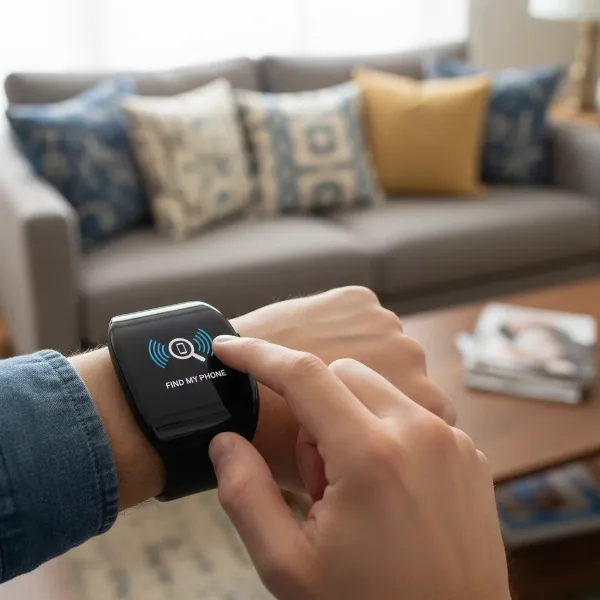 A person using a smartwatch to find their lost smartphone, showing a "ping" icon and sound waves.
How to Find Your Phone with Popular Smartwatch Brands
Each major smartwatch ecosystem offers a distinct set of steps for locating your misplaced phone. Here’s a breakdown by brand:
Apple Watch: Finding Your iPhone
The Apple Watch seamlessly integrates with Apple’s “Find My” network, providing robust options for locating your iPhone.
- For nearby phones (within Bluetooth range):
- Open Control Center: On your Apple Watch, press the side button (for watchOS 10 and later) or swipe up from the watch face (for watchOS 9 and earlier) to open the Control Center.
- Tap the “Ping iPhone” icon: Look for the icon that resembles a phone with sound waves emanating from it. Tapping this icon will make your iPhone play a distinctive pinging sound, gradually increasing in volume, even if it’s on silent.
- Activate flashlight (Pro-tip): If you’re searching in the dark, tap and hold the “Ping iPhone” icon. This will not only make your iPhone ping but also flash its LED light, providing a visual cue.
- For phones further away or offline (using Find Devices app):
- Open the “Find Devices” app: From your Apple Watch app list (press the Digital Crown), locate and tap the “Find Devices” app.
- Select your iPhone: You’ll see a list of your linked Apple devices. Tap on your iPhone.
- Play Sound/View Location: You can choose to “Play Sound” (if the phone is online and within range) or view its last known location on a map. If the device is offline, it will show “Sound Pending,” and the sound will play once it reconnects to a network.
- Precision Finding (Apple Watch Series 9 and later, all Apple Watch Ultra models, and iPhone 15 and later):
- Access Control Center: Press the side button on your Apple Watch.
- Tap the “Ping iPhone” icon.
- If your iPhone is within range, your Apple Watch will display a general heading and distance (e.g., “50 feet”). Follow the on-screen prompts, and the screen will turn green with haptic feedback as you get closer.
|
Our Picks for the Best Smartwatch in 2026
As an Amazon Associate I earn from qualifying purchases.
|
||
| Num | Product | Action |
|---|---|---|
| 1 | Apple Watch Series 11 [GPS 46mm] Smartwatch with Jet Black Aluminum Case with Sport Band - M/L. Sleep Score, Fitness Tracker, Health Monitoring, Always-On Display, Water Resistant |
![Check Apple Watch Series 11 [GPS 46mm] Smartwatch with Jet Black Aluminum Case with Sport Band - M/L. Sleep Score, Fitness Tracker, Health Monitoring, Always-On Display, Water Resistant on Amazon](https://smartwatchus.com/wp-content/plugins/amazon-tables/assets/images/buy.png)
|
| 2 | Smart Watch for Men Women Compatible with iPhone Samsung Android Phone 1.83 inch Full Touch Screen IP68 Waterproof Bluetooh Fitness Tracker Heart Rate/Sleep Monitor, Black |
|
| 3 | Smart Watch for Men, 120+ Sports Modes Smartwatch with 1.83" HD Touchsreen, Sleep Monitor, IP67 Waterproof, Bluetooth Call & Music Control Fitness Watch for iPhone/Android Black |
|
| 4 | Amazfit Bip 6 Smart Watch 46mm, 14 Day Battery, 1.97" AMOLED Display, GPS & Free Maps, AI, Bluetooth Call & Text, Health, Fitness & Sleep Tracker, 140+ Workout Modes, 5 ATM Water-Resistance, Black |
|
| 5 | Smart Watch for Men, 120 Sports Modes Smartwatch with 1.83" HD Touchsreen, IP67 Waterproof, Sleep Monitor, Bluetooth Call & Music Control Fitness Watch for Android/iPhone (Black) |
|
| 6 | WHOOP 5.0/MG Activity Tracker - 12 Month Membership - Health and Fitness Wearable – 24/7 Activity and Sleep Tracker, Personalized Coaching, Menstrual Cycle Insights – 14+ Days Battery Life |
|
| 7 | SAMSUNG Galaxy Watch 7 40mm Bluetooth AI Smartwatch w/Energy Score, Wellness Tips, Heart Rate Tracking, Sleep Monitor, Fitness Tracker, 2024, Cream [US Version, 1Yr Manufacturer Warranty] |
|
| 8 | Smart Watch with Alexa Built-in, 1.83" HD Touchscreen Fitness Tracker with Bluetooth Calling, Fitness Watch with Heart Rate/Sleep Monitor, 120+ Sports Modes, IP68 Waterproof Smartwatch for Android iOS |
|
| 9 | Smart Watch, 2026 AMOLED 1.43" Fitness Smartwatch for Men Women, Bluetooth 5.4 Call, 130+Sports Modes, 60+Days Flashlight, Heart Rate/Sleep Monitor, IP68 Waterproof Activity Tracker for Android iOS |
|
| 10 | Apple Watch Series 11 [GPS 42mm] Smartwatch with Rose Gold Aluminum Case with Light Blush Sport Band - S/M. Sleep Score, Fitness Tracker, Health Monitoring, Always-On Display, Water Resistant |
|
Samsung Galaxy Watch: Locating Your Galaxy Phone
Samsung Galaxy Watches offer a straightforward “Find My Phone” feature, especially useful when your phone is nearby.
- For nearby phones (within Bluetooth range):
- Access the Quick Panel or Apps Tray: Swipe down from the watch face to open the Quick Panel, or swipe up from the watch face to access the Apps tray.
- Tap the “Find My Phone” icon: Look for an icon that typically resembles a phone with a magnifying glass or sound waves.
- Start ringing: Tap “Start” or “Start ringing your connected phone.” Your paired Galaxy phone will begin ringing loudly, often at its maximum volume, even if it was previously set to silent or vibrate.
- Stop ringing: Once you find your phone, you can stop the ringing by interacting with the popup on your phone or by tapping an “X” button on your watch.
- For phones further away (using SmartThings Find):
- While the direct “Find My Phone” from the watch primarily uses Bluetooth, Samsung’s SmartThings Find, which integrates with your Galaxy Watch, can help locate devices on a map even when they’re further away, provided they have a strong internet connection. You would typically access SmartThings Find from another device (like a tablet or PC) or through the SmartThings app on your watch for broader device management.
Wear OS Smartwatches: Finding Your Android Phone
Wear OS watches (from brands like Google Pixel Watch, Fossil, TicWatch, etc.) leverage Google’s ecosystem to help you find your Android phone.
- For nearby phones (within Bluetooth range):
- Open the App List: From your watch face, open the app list (often by pressing the side button or swiping).
- Select “Find my phone”: Look for and tap the “Find my phone” app.
- Trigger sound: Your paired Android phone will start ringing loudly. This feature works best when your phone is powered on, connected via Bluetooth, and within hearing distance.
- Stop ringing: Tap ‘X’ on your watch or interact with the notification on your phone to stop the sound.
- Using Voice Command: For many Wear OS devices, you can simply say, “Ok Google, find my phone,” and your phone will ring at full volume.
- Google’s Find My Device Network: The updated Find My Device network (for Android 9+) offers more advanced capabilities, including locating offline devices and integrating with Nest smart home devices for proximity cues. While the direct watch feature focuses on ringing, the broader network provides a safety net for more extensive searches, though this is primarily accessed via another phone or web browser, not directly from the watch itself for extensive mapping.
Garmin Watches: Locating Your Paired Smartphone
Garmin smartwatches, known for their robust fitness features, also include a practical “Find My Phone” function.
- For nearby phones (within Bluetooth range):
- Access Controls Menu: Typically, you press and hold a specific button (e.g., CTRL, Action, or LIGHT button on different Garmin models) to bring up the controls menu.
- Select “Find My Phone” icon: Look for the icon that usually depicts a phone with a question mark or sound waves.
- Trigger alert: Your paired phone will sound an alert if it’s within Bluetooth range.
- Halt search: Press the BACK button on your watch to stop the alert.
- Last Known Location (during GPS activity): Some Garmin watches can notify you if the Bluetooth connection to your phone is lost during a GPS activity. If enabled, this feature might offer navigation back to the phone’s last known connected location.
Detailed Comparison of Phone-Finding Features
Here’s a comparison of common “Find My Phone” features across different smartwatch brands:
| Feature | Apple Watch | Samsung Galaxy Watch | Wear OS Smartwatches | Garmin Watches |
|---|---|---|---|---|
| Primary Method | Ping sound via Control Center/Find Devices app | Ringing via “Find My Phone” app | Ringing via “Find my phone” app / Voice command | Alert sound via Controls Menu |
| Sound Level | Gradually increases, loud (even if on silent) | Loudest volume (even if on silent/vibrate) | Full volume (even if on silent/vibrate) | Audible alert |
| Vibration | Yes (if applicable) | Yes | Yes (phone) | Yes (watch, if finding watch from phone) |
| Visual Cue (Phone) | LED light flash (hold ping icon, newer models) | No direct watch-activated flashlight | No direct watch-activated flashlight | No direct watch-activated flashlight |
| Directional Guidance | Precision Finding (Series 9+, Ultra) | No direct from watch | No direct from watch | Limited (last known location during GPS activity) |
| Offline Tracking | Yes (Find My network, up to 24 hrs for some iPhones) | Yes (via SmartThings Find network) | Yes (via new Find My Device network, Android 9+) | No (relies on Bluetooth connection) |
| Requires Bluetooth | For proximity pinging | For proximity ringing | For proximity ringing | Yes |
| Requires Internet | For Find My network features | For SmartThings Find (remote location) | For Find My Device network (remote location) | No |
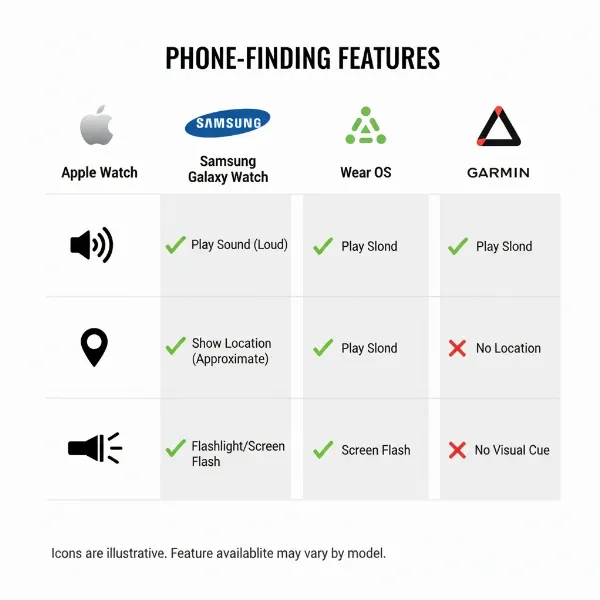 Visual comparison of phone finding features across various smartwatch brands and models.
“The convenience of having a phone-finding feature on your wrist is invaluable. It transforms a moment of panic into a quick solution, especially when your phone is just out of sight.”
How to Choose a Smartwatch Based on Phone-Finding Needs
When selecting a smartwatch, consider how its “Find My Phone” capabilities align with your lifestyle and potential scenarios of a lost phone.
Determine Your Usage Needs
- Frequent misplacements at home/office: If your phone often gets lost nearby, a smartwatch with a loud, reliable “ping” feature (like Apple Watch, Galaxy Watch, or Wear OS) is crucial.
- Concerns about losing phone outside: If you worry about leaving your phone behind in public places or want a safety net for truly lost devices, prioritize smartwatches that integrate with broader “find my device” networks offering map location and offline tracking (Apple Watch with Find My, Samsung with SmartThings Find, Wear OS with Find My Device).
- Specific phone brand loyalty: If you’re an iPhone user, an Apple Watch offers the most integrated and advanced features, including Precision Finding. For Android users, a Samsung Galaxy Watch or a Wear OS device will provide the best compatibility.
Consider Your Budget
Advanced features like Precision Finding or extensive offline tracking may be available on newer, higher-end smartwatches. More budget-friendly options typically offer the basic proximity-ringing feature via Bluetooth.
Brand and Model Compatibility
Always ensure the smartwatch you choose is fully compatible with your smartphone. An Apple Watch, for example, only works with iPhones, while Galaxy Watches and Wear OS devices are best paired with Android phones. Check specific model features, as older versions might have more limited “Find My Phone” capabilities.
Other Factors
- Connectivity (Bluetooth, Wi-Fi, LTE): For basic “find my phone” ringing, Bluetooth is essential. For tracking your phone when it’s out of Bluetooth range, both your phone and watch may need Wi-Fi or LTE connectivity to communicate with the broader “find my device” networks.
- Battery Life: While not directly related to finding a phone, a longer battery life on your smartwatch means it will be ready to help you find your phone when you need it most.
- Operating System: Familiarize yourself with the OS (watchOS, Wear OS, Tizen/One UI) to understand how intuitively you can access the phone-finding features.
Conclusion
Losing your phone is never ideal, but with the right smartwatch, it doesn’t have to be a prolonged ordeal. Smartwatches have evolved into powerful tools that can quickly locate your misplaced device, whether it’s playing a loud chime under the sofa or guiding you to its last known location miles away. By understanding the features offered by Apple Watch, Samsung Galaxy Watch, Wear OS devices, and Garmin, you can choose a wearable that not only complements your lifestyle but also provides crucial peace of mind. Investing in a smartwatch with robust phone-finding capabilities is an investment in convenience and security, ensuring you’re always just a few taps away from reuniting with your smartphone.
Frequently Asked Questions
Can my smartwatch find my phone if it’s turned off or out of battery?
For most smartwatches, the direct “ping” feature requires the phone to be powered on and connected via Bluetooth. However, some ecosystems like Apple’s Find My network and Google’s new Find My Device network can track the last known location of an iPhone (up to 24 hours after being off or low battery for some models) or compatible Android phones (especially Pixel 8/8 Pro when powered off).
Does the “Find My Phone” feature work if my phone is on silent or vibrate mode?
Yes, a key benefit of the “Find My Phone” feature on most smartwatches (Apple Watch, Samsung Galaxy Watch, Wear OS) is its ability to override silent or vibrate modes, making your phone ring at full volume so you can hear it.
What if my phone is out of Bluetooth range from my smartwatch?
If your phone is out of Bluetooth range, the direct “ping” feature from your smartwatch won’t work. However, if your smartwatch and phone are connected to the internet (via Wi-Fi or cellular), the phone’s location can often still be tracked through its respective “find my device” network (Apple’s Find My, Google’s Find My Device, Samsung’s SmartThings Find), which you can usually access via a web browser or another device.