Smartwatches have become indispensable companions, from tracking fitness goals to streamlining notifications and even making payments. However, like any piece of technology, there might come a time when your smartwatch needs a fresh start. Whether you’re troubleshooting persistent issues, preparing to sell your device, or simply want to erase your personal data for privacy, a factory reset is often the solution. This guide will walk you through the process of resetting your smartwatch to its factory settings, covering popular brands and offering crucial tips to ensure a smooth, secure reset.
Why You Might Need to Factory Reset Your Smartwatch
Performing a factory reset on your smartwatch might seem like a drastic step, but it’s a powerful tool for resolving a variety of issues and preparing your device for new ownership or a fresh start. Understanding the reasons behind it can help you decide if it’s the right course of action.
- Troubleshooting Performance Issues: Over time, your smartwatch can accumulate temporary files, bugs, or software glitches that slow it down, cause apps to crash, or lead to unexpected behavior. A factory reset can clear these issues, restoring the watch to its optimal performance.
- Selling or Giving Away Your Smartwatch: Before passing your device to a new owner, it’s crucial to erase all your personal data. This includes health metrics, messages, payment information, saved Wi-Fi networks, and app data. A factory reset ensures your privacy is protected and the next user starts with a clean slate.
- Resolving Connectivity Problems: If your smartwatch struggles to connect reliably to your phone, Wi-Fi, or Bluetooth accessories, a reset can often clear underlying network configuration issues.
- Preparing for Major Software Updates: In some rare cases, a factory reset might be recommended before a significant operating system update to prevent compatibility problems or ensure a clean installation.
- Starting Fresh: Perhaps you want to reconfigure your watch settings from scratch, try new apps, or simply organize your digital life. A factory reset provides that opportunity.
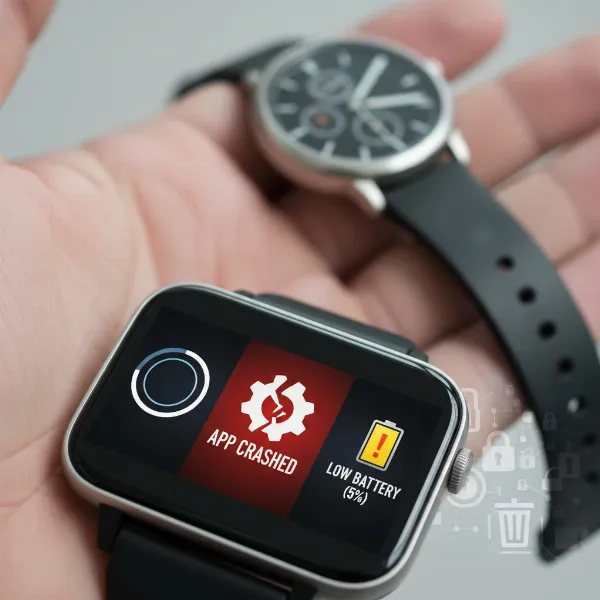 A smartwatch displaying error messages, indicating common issues like crashes or slow performance.
Essential Preparations Before Resetting Your Smartwatch
A factory reset erases all data from your smartwatch, effectively returning it to the state it was in when you first unboxed it. Because of this, proper preparation is key to avoid losing important information and ensure a hassle-free experience.
- Backup Your Data: Many smartwatches automatically sync data to their companion apps (like Apple Health, Samsung Health, or Garmin Connect). Verify that your health, fitness, and other important data are synced to your phone or cloud service. Some platforms allow manual backups of watch-specific settings and apps.
- Unpair Your Smartwatch: Disconnecting your smartwatch from your phone is a critical step, especially for Apple Watch and Wear OS devices. Unpairing often initiates a reset itself and ensures the watch is no longer linked to your personal accounts.
- Charge Your Smartwatch Fully: A factory reset can take several minutes, and your watch must not run out of battery during the process. Ensure your smartwatch is at least 50% charged, ideally connected to its charger, to prevent any interruptions that could lead to software corruption.
- Remove Payment Cards: If you use features like Apple Pay, Google Wallet, or Garmin Pay, remove all payment cards from your watch’s wallet before resetting.
- Understand What’s Lost: Be aware that all personal settings, installed apps, fitness history stored locally on the watch, watch faces, and paired Bluetooth devices will be erased. While cloud-synced data can be restored, local-only data will be gone forever.
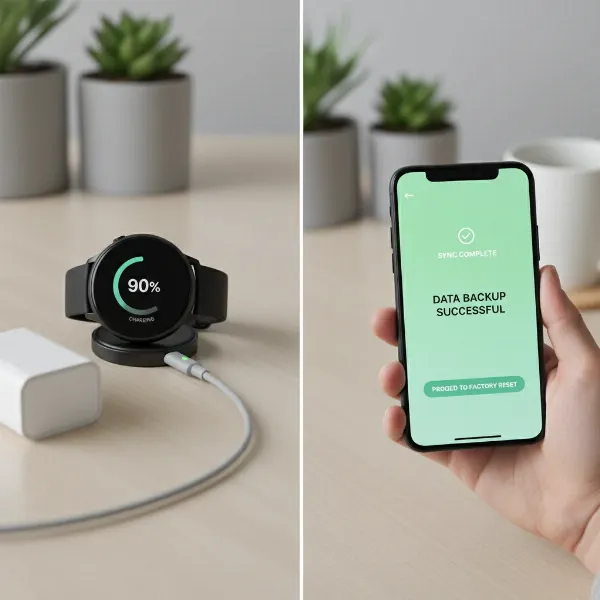 A user carefully charging their smartwatch and backing up data to a smartphone before a factory reset.
Step-by-Step Guides for Popular Smartwatch Brands
The process for performing a factory reset varies slightly depending on your smartwatch’s brand and operating system. Below are detailed instructions for the most popular smartwatches on the market.
How to Factory Reset Your Apple Watch
|
Our Picks for the Best Smartwatch in 2026
As an Amazon Associate I earn from qualifying purchases.
|
||
| Num | Product | Action |
|---|---|---|
| 1 | Smart Watch, 2026 AMOLED 1.43" Fitness Smartwatch for Men Women, Bluetooth 5.4 Call, 130+Sports Modes, 60+Days Flashlight, Heart Rate/Sleep Monitor, IP68 Waterproof Activity Tracker for Android iOS |

|
| 2 | Smart Watch for Men, 120+ Sports Modes Smartwatch with 1.83" HD Touchsreen, Sleep Monitor, IP67 Waterproof, Bluetooth Call & Music Control Fitness Watch for iPhone/Android Black |
|
| 3 | Apple Watch Series 11 [GPS 42mm] Smartwatch with Rose Gold Aluminum Case with Light Blush Sport Band - S/M. Sleep Score, Fitness Tracker, Health Monitoring, Always-On Display, Water Resistant |
|
| 4 | Smart Watch for Men, 120 Sports Modes Smartwatch with 1.83" HD Touchsreen, IP67 Waterproof, Sleep Monitor, Bluetooth Call & Music Control Fitness Watch for Android/iPhone (Black) |
|
| 5 | Smart Watch with Alexa Built-in, 1.83" HD Touchscreen Fitness Tracker with Bluetooth Calling, Fitness Watch with Heart Rate/Sleep Monitor, 120+ Sports Modes, IP68 Waterproof Smartwatch for Android iOS |
|
| 6 | WHOOP 5.0/MG Activity Tracker - 12 Month Membership - Health and Fitness Wearable – 24/7 Activity and Sleep Tracker, Personalized Coaching, Menstrual Cycle Insights – 14+ Days Battery Life |
|
| 7 | SAMSUNG Galaxy Watch 7 40mm Bluetooth AI Smartwatch w/Energy Score, Wellness Tips, Heart Rate Tracking, Sleep Monitor, Fitness Tracker, 2024, Cream [US Version, 1Yr Manufacturer Warranty] |
|
| 8 | Smart Watch for Men Women Compatible with iPhone Samsung Android Phone 1.83 inch Full Touch Screen IP68 Waterproof Bluetooh Fitness Tracker Heart Rate/Sleep Monitor, Black |
|
| 9 | Amazfit Bip 6 Smart Watch 46mm, 14 Day Battery, 1.97" AMOLED Display, GPS & Free Maps, AI, Bluetooth Call & Text, Health, Fitness & Sleep Tracker, 140+ Workout Modes, 5 ATM Water-Resistance, Black |
|
| 10 | Apple Watch Series 11 [GPS 46mm] Smartwatch with Jet Black Aluminum Case with Sport Band - M/L. Sleep Score, Fitness Tracker, Health Monitoring, Always-On Display, Water Resistant |
|
Apple Watches can be reset directly from the watch itself or via the paired iPhone’s Watch app.
From Your Apple Watch:
- Open Settings: Press the Digital Crown to view your apps, then tap the “Settings” icon (gear).
- Navigate to Reset: Scroll down and tap “General,” then scroll down again and tap “Reset.”
- Erase All Content: Tap “Erase All Content and Settings.”
- Enter Passcode: If prompted, enter your Apple Watch passcode.
- Cellular Plan (if applicable): If your Apple Watch has cellular service, you’ll be asked if you want to “Keep Your Plan” or “Remove Plan.” Choose “Remove Plan” if you’re selling or giving away the watch.
- Confirm: Tap “Erase All” to confirm. The watch will reset and reboot.
From Your iPhone (Using the Watch App):
- Open Watch App: Launch the “Watch” app on your paired iPhone.
- Navigate to Reset: Go to the “My Watch” tab, tap “General,” then scroll down and tap “Reset.”
- Erase Apple Watch Content: Tap “Erase Apple Watch Content and Settings.”
- Confirm: You might be asked for your Apple ID password. Confirm the action when prompted.
- Cellular Plan (if applicable): As with the on-watch method, choose to “Remove Cellular Plan” if you’re not keeping the watch.
Hard Reset (if unresponsive):
If your Apple Watch is frozen or unresponsive, you can force a restart and then proceed with the factory reset:
- Force Restart: Press and hold both the Side button and the Digital Crown for at least 10 seconds until you see the Apple logo.
- Once it restarts, if still unable to access settings, you might need to try a hard reset sequence: Press and hold both the Side button and Digital Crown for 10 seconds. When the Apple logo appears, release both buttons. Wait a few seconds, then hold down only the Side button for about 20 seconds or until the “Erase all content and settings” prompt shows up. Click the prompt, then the green check button.
How to Factory Reset Your Samsung Galaxy Watch
Samsung Galaxy Watches, including models running Wear OS or older Tizen OS, can be reset in a couple of ways.
From Your Galaxy Watch:
- Open Settings: From the watch face, swipe down (or up, depending on your model) to access quick settings, then tap the “Settings” icon (gear).
- Navigate to General: Scroll down and tap “General.”
- Select Reset: Scroll down and tap “Reset.”
- Confirm: Tap “Reset” again to confirm the action. The watch will restart and begin the reset process.
From Your Paired Phone (Using the Galaxy Wearable App):
- Open Wearable App: Launch the “Galaxy Wearable” app on your paired smartphone.
- Navigate to General: Tap “Watch settings,” then select “General.”
- Select Reset: Tap “Reset.”
- Confirm: Tap “Reset” again to confirm.
Hard Reset (if unresponsive):
If your Galaxy Watch is unresponsive, you can perform a hard reset via recovery mode. The exact button combination might vary slightly by model (e.g., Galaxy Watch4, Watch5, Watch6 series vs. older models).
- Power Off: Simultaneously press and hold the Home key (Power key) and Back key until “Rebooting” displays at the bottom of the screen, then release.
- Enter Reboot Mode: Quickly press the Home key repeatedly until the “Reboot mode” menu appears.
- Select Recovery Mode: Press the Home key multiple times to scroll through options until “Recovery” is selected.
- Confirm Recovery: Press and hold the Home key to confirm and reboot into recovery.
- Wipe Data: If running Wear OS, you’ll see another menu. Swipe down to select “Wipe data/factory reset,” then swipe right. Swipe down again to select “Factory data reset,” and swipe right to perform the reset.
- Reboot: Once complete, swipe right to “Reboot system now.”
How to Factory Reset Generic Wear OS Smartwatches
Most Wear OS watches from brands like Fossil, Mobvoi (TicWatch), and older models follow a similar reset procedure.
From Your Wear OS Smartwatch:
- Access Settings: Swipe down from the top of your watch face and tap the “Settings” icon (gear).
- Go to System: Scroll down and tap “System.”
- Disconnect & Reset: Scroll down and tap “Disconnect & Reset” (or “Unpair with phone” on some older models).
- Confirm: Tap the checkmark to confirm that you want to unpair and wipe data.
- Wait for Reboot: Your smartwatch will factory reset and reboot.
Hard Reset (if unresponsive):
If your Wear OS watch is frozen, you may need to force a reset via hardware buttons. This can vary by model.
- Power Off: Hold the Power button for about 5 seconds to turn off the watch.
- Enter Recovery Mode: With the wearable off, press and hold the Power button and the bottom button (if applicable) for approximately 10 seconds. A “Fastboot Mode” text screen might display.
- Cycle Boot Mode: Short press the Power button to cycle the boot mode until “Recovery Mode” appears.
- Select Recovery: Long press the Power button (about 2 seconds) to select Recovery Mode.
- Wipe Data: The device will boot into recovery. Navigate to “Wipe data/factory reset” (usually by swiping or using buttons) and select it. Confirm by selecting “Yes.”
- Reboot System: Once data is erased, select “Reboot system now.”
How to Factory Reset Your Fitbit Smartwatch
Fitbit smartwatches often have slightly different procedures based on the model (e.g., Sense/Versa series vs. Charge/Inspire/Luxe).
For Fitbit Sense/Versa Series (e.g., Sense, Versa 2, 3, 4):
- Open Settings: From the clock screen, swipe left or right to access your apps, then tap the “Settings” icon.
- Navigate to About: Scroll down and tap “About.”
- Factory Reset: Select “Factory Reset.”
- Confirm: Tap “Reset” again to confirm. Your Fitbit will reboot and display the initial setup message.
For Fitbit Charge/Inspire/Luxe Series (e.g., Charge 3, 4, 5, 6, Inspire 3, Luxe):
- Open Settings: From the clock screen, swipe down or up to access the “Settings” app.
- Navigate to Device Info: Scroll down and tap “Device Info” (or “About” on some models).
- Clear User Data: Select “Clear User Data.”
- Confirm: Follow the on-screen prompts to confirm the action. Your Fitbit will reboot.
Hard Reset (if unresponsive):
For unresponsive Fitbit devices, the button combination for a hard reset can be specific. For example, on some Versa models, you might press and hold the side button until the logo flashes, then release and press and hold again until a circle appears on screen, indicating the reset. Always check your specific model’s manual for precise instructions. Ensure your battery is sufficiently charged before attempting a hard reset.
How to Factory Reset Your Garmin Smartwatch
Garmin smartwatches offer options to either reset settings while keeping data or perform a full data wipe.
From Your Garmin Smartwatch:
- Access Settings: Press and hold the “Light” button (or appropriate button for your model) to access the menu, then navigate to “Settings.”
- Go to System: Select “System,” then “Reset.”
- Choose Reset Option:
- “Reset Default Settings”: This resets all watch settings to factory defaults, including user profile data, but saves your activity history and downloaded apps/files.
- “Delete Data and Reset Settings”: This performs a full factory reset, deleting all user-entered information, activity history, and if applicable, your Garmin Pay wallet and stored music.
- Confirm: Confirm your selection to initiate the reset.
Always sync your Garmin device with the Garmin Connect app before selecting “Delete Data and Reset Settings” to ensure your activity data is uploaded and saved.
What to Expect After a Factory Reset
Once your smartwatch completes the factory reset process, it will restart as if it were a brand new device right out of the box.
- Initial Setup: You will be greeted with the setup screen, usually prompting you to select a language and pair it with your smartphone.
- Re-pairing: You’ll need to re-pair the smartwatch with your phone via its respective companion app (e.g., Watch app for Apple Watch, Galaxy Wearable for Samsung, Wear OS app).
- Restoring Data: If your platform supports it and you backed up your data, you can often restore your settings, apps, and health data during the initial setup or through the companion app.
- Re-downloading Apps and Watch Faces: Any third-party apps and custom watch faces will need to be re-downloaded and reconfigured.
- Re-entering Information: You’ll need to re-enter personal information, preferences, and payment card details (if using a mobile payment service).
Troubleshooting Common Smartwatch Reset Issues
Even with clear instructions, you might encounter some challenges during or after resetting your smartwatch.
- Device Won’t Respond to Reset Commands:
- Check Battery: Ensure your watch has at least 50% charge. A drained battery can prevent resets.
- Force Restart/Hard Reset: If the screen is frozen, try the hard reset (button combination) specific to your device model as detailed above.
- Watch Stuck in a Boot Loop:
- Charge: Connect the smartwatch to its charging dock and try the reset again. Sometimes a stable power source can help it complete the cycle.
- Software Update: If the issue persists after reset, check if a software update is available via the companion app after you manage to pair it.
- Data Didn’t Sync Before Reset:
- Unfortunately, unsynced data, especially local-only fitness data, may be permanently lost. This emphasizes the importance of regularly backing up your device and verifying sync status before a reset.
- Watch Fails to Pair After Reset:
- Forget Device: On your phone’s Bluetooth settings, “forget” or “unpair” the smartwatch completely before attempting to pair it again.
- Restart Phone: Sometimes, simply restarting your phone can resolve pairing issues.
- App Reinstallation: If problems continue, try reinstalling the companion app on your phone.
“A factory reset can feel like hitting the ‘big red button,’ but with proper preparation, it’s a routine maintenance step that can bring new life to your smartwatch or ensure your privacy when moving on.” – SmartwatchUS.com Admin, Smartwatch Technician
Conclusion
Performing a factory reset on your smartwatch is a vital maintenance step that can enhance performance, resolve software glitches, and safeguard your personal data. By following the brand-specific instructions and taking the necessary precautions like backing up your information and charging your device, you can ensure a smooth and successful reset. Whether you’re optimizing your current device or preparing it for a new owner, a clean slate often leads to a better smartwatch experience.
What features do you look forward to rediscovering on your freshly reset smartwatch?
Frequently Asked Questions
What does a factory reset do to my smartwatch?
A factory reset erases all user data, installed apps, settings, and personal information, restoring your smartwatch to its original out-of-the-box state. It’s like wiping the slate clean, leaving only the operating system and pre-installed applications.
Will a factory reset remove the operating system from my smartwatch?
No, a factory reset does not remove the operating system. It only clears user-added data and settings. The watch’s core software (watchOS, Wear OS, Tizen, Fitbit OS, Garmin OS) remains intact, ready for a new setup.
How long does a smartwatch factory reset typically take?
The duration of a factory reset can vary by model and brand, but it typically takes anywhere from a few minutes to about 10-15 minutes. It’s crucial not to interrupt the process once it has started.
Can I factory reset my smartwatch if it’s not connected to my phone?
Yes, most smartwatches allow you to initiate a factory reset directly from the watch’s settings menu, even if it’s not currently paired with a phone. Some devices also offer hard reset options using physical buttons for unresponsive watches.
Do I need to unpair my smartwatch before a factory reset?
It is highly recommended to unpair your smartwatch from your phone before a factory reset. For many devices, unpairing itself initiates the reset process. This also helps clear the Bluetooth connection on your phone, preventing future pairing conflicts.