Modern smartwatches have evolved far beyond simple timekeeping, transforming into essential tools for health, fitness, and, most critically, personal safety. Among their most powerful features are Fall Detection and Emergency SOS, capabilities designed to provide a vital lifeline when you need it most. Whether you’re an avid adventurer, live independently, or simply seek an extra layer of security, understanding and utilizing these functions can offer immense peace of mind. This article will walk you through how these crucial safety features work, guide you through their setup and customization, and highlight important considerations to ensure you’re fully protected.
Understanding Smartwatch Safety Features
At their core, Fall Detection and Emergency SOS are designed to connect you with help in critical situations, often without requiring direct interaction with your phone.
What is Fall Detection?
|
Our Picks for the Best Smartwatch in 2026
As an Amazon Associate I earn from qualifying purchases.
|
||
| Num | Product | Action |
|---|---|---|
| 1 | Smart Watch for Men, 120 Sports Modes Smartwatch with 1.83" HD Touchsreen, IP67 Waterproof, Sleep Monitor, Bluetooth Call & Music Control Fitness Watch for Android/iPhone (Black) |

|
| 2 | Smart Watch for Men, 120+ Sports Modes Smartwatch with 1.83" HD Touchsreen, Sleep Monitor, IP67 Waterproof, Bluetooth Call & Music Control Fitness Watch for iPhone/Android Black |
|
| 3 | SAMSUNG Galaxy Watch 7 40mm Bluetooth AI Smartwatch w/Energy Score, Wellness Tips, Heart Rate Tracking, Sleep Monitor, Fitness Tracker, 2024, Cream [US Version, 1Yr Manufacturer Warranty] |
|
| 4 | Apple Watch Series 11 [GPS 42mm] Smartwatch with Rose Gold Aluminum Case with Light Blush Sport Band - S/M. Sleep Score, Fitness Tracker, Health Monitoring, Always-On Display, Water Resistant |
|
| 5 | Amazfit Bip 6 Smart Watch 46mm, 14 Day Battery, 1.97" AMOLED Display, GPS & Free Maps, AI, Bluetooth Call & Text, Health, Fitness & Sleep Tracker, 140+ Workout Modes, 5 ATM Water-Resistance, Black |
|
| 6 | Smart Watch for Men Women Compatible with iPhone Samsung Android Phone 1.83 inch Full Touch Screen IP68 Waterproof Bluetooh Fitness Tracker Heart Rate/Sleep Monitor, Black |
|
| 7 | WHOOP 5.0/MG Activity Tracker - 12 Month Membership - Health and Fitness Wearable – 24/7 Activity and Sleep Tracker, Personalized Coaching, Menstrual Cycle Insights – 14+ Days Battery Life |
|
| 8 | Smart Watch, 2026 AMOLED 1.43" Fitness Smartwatch for Men Women, Bluetooth 5.4 Call, 130+Sports Modes, 60+Days Flashlight, Heart Rate/Sleep Monitor, IP68 Waterproof Activity Tracker for Android iOS |
|
| 9 | Smart Watch with Alexa Built-in, 1.83" HD Touchscreen Fitness Tracker with Bluetooth Calling, Fitness Watch with Heart Rate/Sleep Monitor, 120+ Sports Modes, IP68 Waterproof Smartwatch for Android iOS |
|
| 10 | Apple Watch Series 11 [GPS 46mm] Smartwatch with Jet Black Aluminum Case with Sport Band - M/L. Sleep Score, Fitness Tracker, Health Monitoring, Always-On Display, Water Resistant |
|
Fall Detection leverages advanced sensors, primarily an accelerometer, within your smartwatch to identify when you’ve experienced a hard fall. If a significant impact is detected, your watch initiates an alert sequence, typically involving a distinctive sound, vibration, and an on-screen prompt asking if you’re okay. If you don’t respond within a specific timeframe (often 60 seconds), your smartwatch will automatically initiate an SOS call or send an emergency message to your designated contacts, sharing your location. This feature is particularly invaluable for the elderly, individuals with mobility issues, or those engaging in solitary activities where immediate assistance might otherwise be delayed.
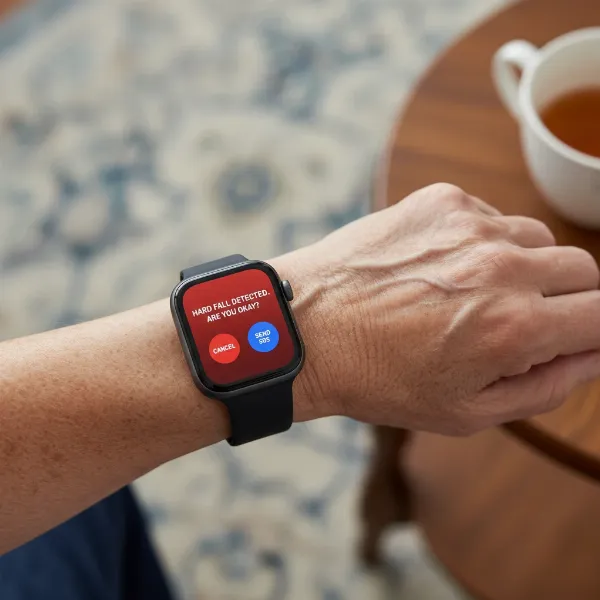 A smartwatch on an elderly person's wrist detecting a fall and showing an emergency alert.
What is Emergency SOS?
Emergency SOS provides a direct, user-activated method to call for help. Instead of waiting for a fall to be detected, you can manually trigger this feature in an emergency. On many smartwatches, this involves quickly pressing a physical button (like the Home key on a Galaxy Watch) a set number of times. Once activated, your watch will either connect you directly to emergency services or send an alert, including your current location, to your pre-selected emergency contacts. This function is essential in situations where you might feel unsafe, witness an accident, or need immediate assistance but are unable to access your phone.
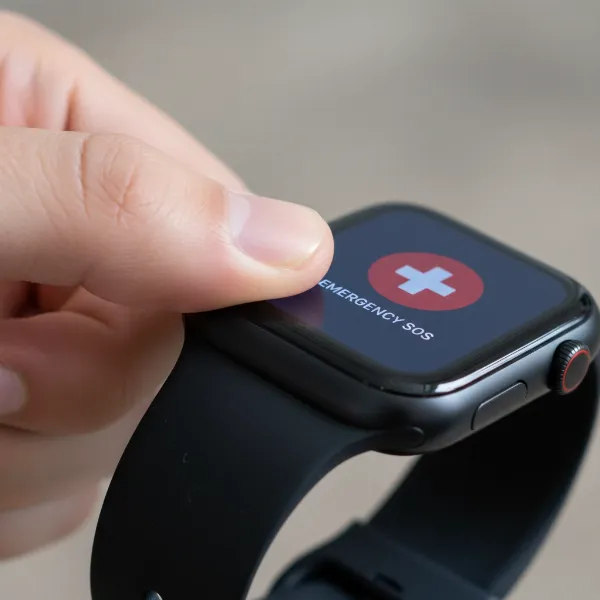 A hand pressing the side button of a smartwatch to activate Emergency SOS.
Setting Up Fall Detection and Emergency SOS on Your Smartwatch
Enabling these safety features is a straightforward process, typically managed through your smartwatch’s settings or its companion app on your smartphone.
Prerequisites Before Setup
Before you begin, ensure you have the following in place:
- Paired Smartphone: Your smartwatch needs to be paired with a compatible smartphone.
- Network Connection: For SOS calls and messages to be sent, your smartwatch or paired phone needs an active network connection (cellular or Wi-Fi).
- Emergency Contacts Configured: You must have at least one emergency contact set up on your smartphone, as these are the individuals your watch will alert.
- Location Services Enabled: To accurately share your location in an emergency, location services must be active on your watch and phone.
Step-by-Step: Enabling Fall Detection
While specific steps may vary slightly by brand, the general process for enabling Fall Detection on smartwatches like the Samsung Galaxy Watch series (3, 4, 5, and 6) is as follows:
- Access Settings: Open the “Galaxy Wearable” app on your paired smartphone, or access the “Settings” app directly on your smartwatch.
- Navigate to Safety: Scroll down and tap on “Safety and emergency.”
- Activate Fall Detection: Select “Hard fall detection” and toggle the switch to the “ON” position.
- Configure Detection Sensitivity: Some watches allow you to choose “When to detect falls.” Options often include “Always,” “During physical activity,” or “Only during workouts.” Select the option that best suits your lifestyle and needs to minimize false alarms while ensuring protection.
- Understand the Alert Process: Be aware that after a detected fall, your watch will typically alert you for 60 seconds with a popup, sound, and vibration. You can cancel this alert or swipe to send an SOS immediately. If you don’t respond within 60 seconds, an SOS message will be automatically sent to your emergency contacts.
Step-by-Step: Enabling Emergency SOS
Setting up the manual Emergency SOS feature typically involves these steps:
- Access Settings: Open the “Galaxy Wearable” app on your smartphone or the “Settings” app on your smartwatch.
- Navigate to Safety: Scroll down and tap on “Safety and emergency.”
- Select Emergency SOS: Choose “Emergency SOS” or “SOS with Home key.”
- Toggle ON: Turn the feature on by toggling its switch.
- Choose Activation Method: You may be prompted to select how many times you press a specific button (e.g., the Home key) to activate SOS (commonly three or four times).
- Set Emergency Number: Designate the “Emergency number to call.” This can be a local emergency service number or a trusted contact.
- Customize Countdown (Optional): Enable “Countdown” if you prefer a short delay (e.g., 10 seconds) before the automatic call, allowing you a moment to cancel if it’s a false alarm.
- Adjust Warning Sound (Optional): You can choose to turn off the “Play warning sound” if you prefer a discreet activation.
- Set Up Emergency Contacts: If not already done, ensure you “Share info with emergency contacts” by adding specific individuals from your phone’s contact list.
Customizing Your Safety Features for Optimal Protection
Tailoring these features to your specific lifestyle ensures maximum effectiveness and reduces unnecessary alerts.
- Fall Sensitivity: The “When to detect falls” option is crucial. If you lead an active lifestyle with intense workouts, choosing “Only during workouts” or “During physical activity” might prevent false alarms from vigorous movements. For those at higher risk of unexpected falls, “Always” offers continuous protection.
- Automatic vs. Confirmed Calls: The “Countdown” feature for Emergency SOS and the 60-second alert for Fall Detection allow you a brief window to cancel an accidental activation. Consider if you want the watch to require a swipe to confirm an emergency call or if it should call automatically after the countdown.
- Emergency Contacts: Carefully select your emergency contacts. These should be individuals who are reliable, accessible, and know how to respond in an emergency. Inform them that they are listed as your emergency contacts and explain how the smartwatch feature works.
- Warning Sounds: While a warning sound can be helpful in alerting others nearby or giving you time to cancel, you might choose to disable it for a more discreet SOS activation in certain situations.
“Smartwatch safety features like Fall Detection and Emergency SOS are game-changers, offering a tangible sense of security to users and their loved ones. They act as a silent guardian, ready to connect you to help when every second counts.” – Tech Expert, SmartwatchUS.com
Important Considerations and Limitations
While incredibly beneficial, it’s vital to understand the limitations of smartwatch safety features:
- Not a Medical Device: Smartwatches are not medical devices and should not be used for the diagnosis, treatment, or prevention of any disease. They are designed for fitness and wellness purposes, providing an additional layer of safety, not a substitute for professional medical care.
- Detection Accuracy: No technology is infallible. Smartwatches cannot detect all falls, and intense physical activity can sometimes trigger false alarms. Regularly updating your watch’s software can help improve accuracy.
- Connectivity Requirements: Sending SOS calls and messages requires a network connection (cellular or Wi-Fi) and may require your smartwatch to be paired with your smartphone. If your watch loses connection, these features may not function.
- Battery Life: While not explicitly detailed, continuously active sensors for fall detection can incrementally impact battery life. Ensure your smartwatch is adequately charged, especially if you rely on these features.
Configuring your smartwatch with Fall Detection and Emergency SOS is a proactive step towards enhancing your personal safety. These features offer a critical layer of protection, empowering you to get help quickly when an unexpected situation arises. By understanding their functionality, meticulously setting them up, and customizing them to your unique needs, you can truly unlock the full life-saving potential of your smartwatch. Make sure to regularly check your settings and battery life, and ensure your emergency contacts are always up to date.
Frequently Asked Questions
Can Fall Detection work without my phone nearby?
Many smartwatches, especially those with cellular connectivity, can initiate an SOS call or send messages even when your phone isn’t directly nearby, provided the watch has its own network connection. However, some models require your phone to be within Bluetooth range. Always check your specific smartwatch model’s capabilities.
What happens if I accidentally trigger Emergency SOS or Fall Detection?
Most smartwatches incorporate a countdown or a confirmation prompt after activation, giving you a short window (e.g., 10-60 seconds) to cancel the alert before it’s sent to emergency services or contacts. This helps prevent accidental calls or messages.
How do I add or change emergency contacts for my smartwatch?
You typically manage emergency contacts through the companion app on your smartphone (e.g., the Galaxy Wearable app for Samsung watches). Navigate to the “Safety and emergency” section, where you should find an option to add, remove, or edit your emergency contacts.