Smartwatches have become indispensable companions, offering convenience and a wealth of features right on your wrist. While most come with a suite of pre-installed applications, the true power of a smartwatch often lies in its ability to host third-party apps. These applications, developed by external creators, can significantly expand your device’s capabilities, from advanced fitness tracking to niche productivity tools. Understanding how to navigate the various app ecosystems and installation methods is key to unlocking your smartwatch’s full potential.
This guide will walk you through the process of installing third-party apps across the most popular smartwatch platforms, including Wear OS (and compatible Samsung Galaxy Watches), Apple Watch, and Garmin. We’ll cover everything from using official app stores to exploring advanced sideloading techniques, helping you tailor your wrist-worn device to your exact needs and lifestyle.
Understanding Smartwatch App Ecosystems
Before diving into installation steps, it’s crucial to understand that smartwatches operate on diverse software platforms, each with its own app distribution model. The primary distinction lies between official app stores and less conventional “third-party” installation methods, such as sideloading.
- Official App Stores: These are curated marketplaces (like Google Play Store for Wear OS, Apple App Store for Apple Watch, and Garmin Connect IQ Store) where developers submit apps for review and approval. They offer a secure and convenient way to discover and install apps, ensuring compatibility and often better optimization for your device.
- Third-Party Sideloading: This method involves installing apps from sources outside the official app stores. While it offers unparalleled flexibility, allowing you to run applications not officially sanctioned for your watch, it comes with potential risks like security vulnerabilities or app instability. It’s typically more prevalent on Android-based smartwatches.
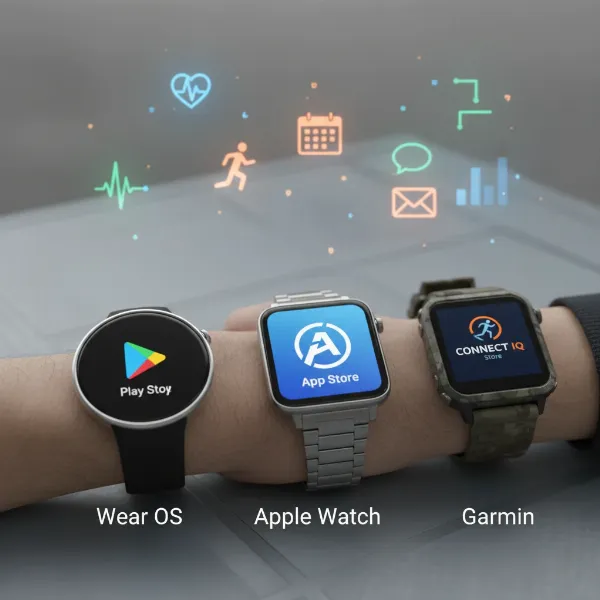 Visual representation of diverse smartwatch app ecosystems, including Google Play, Apple App Store, and Garmin Connect IQ.
Installing Apps on Wear OS Smartwatches (Including Samsung Galaxy Watch running Wear OS)
Wear OS, powered by Google, offers a robust app ecosystem primarily through the Google Play Store. Newer Samsung Galaxy Watch models (like the Galaxy Watch 4, 5, and 6) also run Wear OS, making these instructions applicable to them.
From the On-Watch Google Play Store
|
Our Picks for the Best Smartwatch in 2026
As an Amazon Associate I earn from qualifying purchases.
|
||
| Num | Product | Action |
|---|---|---|
| 1 | Smart Watch, 2026 AMOLED 1.43" Fitness Smartwatch for Men Women, Bluetooth 5.4 Call, 130+Sports Modes, 60+Days Flashlight, Heart Rate/Sleep Monitor, IP68 Waterproof Activity Tracker for Android iOS |

|
| 2 | Smart Watch with Alexa Built-in, 1.83" HD Touchscreen Fitness Tracker with Bluetooth Calling, Fitness Watch with Heart Rate/Sleep Monitor, 120+ Sports Modes, IP68 Waterproof Smartwatch for Android iOS |
|
| 3 | WHOOP 5.0/MG Activity Tracker - 12 Month Membership - Health and Fitness Wearable – 24/7 Activity and Sleep Tracker, Personalized Coaching, Menstrual Cycle Insights – 14+ Days Battery Life |
|
| 4 | Amazfit Bip 6 Smart Watch 46mm, 14 Day Battery, 1.97" AMOLED Display, GPS & Free Maps, AI, Bluetooth Call & Text, Health, Fitness & Sleep Tracker, 140+ Workout Modes, 5 ATM Water-Resistance, Black |
|
| 5 | Smart Watch for Men, 120+ Sports Modes Smartwatch with 1.83" HD Touchsreen, Sleep Monitor, IP67 Waterproof, Bluetooth Call & Music Control Fitness Watch for iPhone/Android Black |
|
| 6 | SAMSUNG Galaxy Watch 7 40mm Bluetooth AI Smartwatch w/Energy Score, Wellness Tips, Heart Rate Tracking, Sleep Monitor, Fitness Tracker, 2024, Cream [US Version, 1Yr Manufacturer Warranty] |
|
| 7 | Apple Watch Series 11 [GPS 42mm] Smartwatch with Rose Gold Aluminum Case with Light Blush Sport Band - S/M. Sleep Score, Fitness Tracker, Health Monitoring, Always-On Display, Water Resistant |
|
| 8 | Smart Watch for Men, 120 Sports Modes Smartwatch with 1.83" HD Touchsreen, IP67 Waterproof, Sleep Monitor, Bluetooth Call & Music Control Fitness Watch for Android/iPhone (Black) |
|
| 9 | Smart Watch for Men Women Compatible with iPhone Samsung Android Phone 1.83 inch Full Touch Screen IP68 Waterproof Bluetooh Fitness Tracker Heart Rate/Sleep Monitor, Black |
|
| 10 | Apple Watch Series 11 [GPS 46mm] Smartwatch with Jet Black Aluminum Case with Sport Band - M/L. Sleep Score, Fitness Tracker, Health Monitoring, Always-On Display, Water Resistant |
|
The most straightforward way to install apps on a Wear OS smartwatch is directly from the Google Play Store on your watch itself.
- Ensure Connectivity: Make sure your smartwatch is connected to Wi-Fi or has an active LTE connection.
- Access Play Store: Press the Power button (or Digital Crown) to view your app list, then tap the Google Play Store icon. You’ll be signed in with the Google Account linked to your watch.
- Browse or Search: Scroll through featured apps, categories, or use the search function (via voice, scribble, or keyboard) to find the app you want.
- Install: Tap the app and then tap “Install” to download it to your smartwatch.
From Your Paired Phone’s Google Play Store
You can also initiate app installations from your smartphone, which can be more convenient for browsing.
- Open Play Store: On your Android phone, open the Google Play Store app.
- Find Watch Apps: Use the search filters or navigate to the “Watch apps” category.
- Select Device: Once you find a desired app, tap “Install.” If you have multiple devices, a dropdown arrow next to the “Install” button will allow you to select your smartwatch as the target device.
Sideloading Third-Party APKs (Advanced)
For apps not available on the official Play Store or for specific Android applications you wish to experiment with, sideloading is an option for Wear OS devices. This method requires a bit more technical know-how.
“Sideloading opens up a world of possibilities for Wear OS users, but it’s crucial to understand the security implications. Always source APKs from reputable sites and be mindful of the permissions you grant.” – Dr. Alex Chen, Smartwatch Security Expert
Prerequisites: Enabling Developer Options and ADB Debugging
- Enable Developer Options on your Watch:
- Go to Settings on your smartwatch.
- Scroll down and tap About Watch (or System).
- Tap Software (or Build Number) repeatedly (usually 7-10 times) until you see a message that “Developer options have been enabled.”
- Enable ADB Debugging and Wireless Debugging:
- Go back to the main Settings menu.
- Tap Developer Options.
- Toggle on ADB Debugging and Wireless Debugging. Note the IP address and Port displayed under Wireless Debugging.
- Connect to Same Wi-Fi: Ensure both your smartwatch and your phone are connected to the same Wi-Fi network.
Using an ADB Tool (e.g., Bugjaeger Mobile ADB)
Apps like Bugjaeger (available on the Play Store for your phone) allow you to sideload APKs wirelessly without needing a computer.
- Install Bugjaeger: Download and install the Bugjaeger Mobile ADB app on your Android phone.
- Download APK: Obtain the APK file of the third-party app you wish to install. Only download APKs from trusted sources.
- Connect Devices:
- Open Bugjaeger on your phone.
- Tap the “Connect” icon (usually a plug or Wi-Fi symbol).
- Enter the IP address and port number from your smartwatch’s Wireless Debugging settings.
- Follow the on-screen prompts to pair your devices (you may need to enter a pairing code shown on your watch).
- Sideload APK:
- Once connected, navigate to the “Packages” section in Bugjaeger.
- Tap the “Add” icon or “Select APK file.”
- Browse and select the downloaded APK file from your phone’s storage.
- Confirm the installation, and the app will be pushed to your smartwatch.
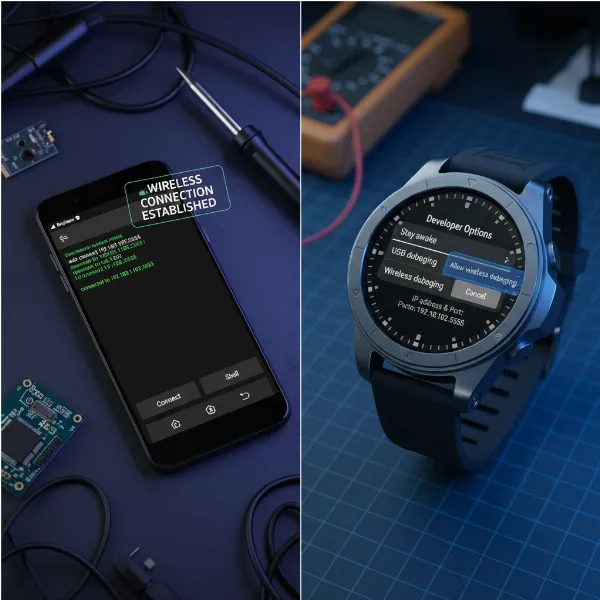 Smartphone screen showing an ADB tool connecting to a Wear OS smartwatch for wireless app sideloading.
Using an APK Installer (e.g., APKPure sideloaded)
Another method involves sideloading an alternative app store like APKPure onto your watch, which then allows you to download other apps directly from the watch. This is an advanced technique and may require initial ADB sideloading of the APKPure app itself.
Pros and Cons of Sideloading
- Pros: Access to a wider range of Android apps, ability to install apps not officially optimized for Wear OS, greater customization.
- Cons: Potential security risks (malware), app instability or poor optimization for a small watch screen, voiding warranty (in some cases), more complex process.
Installing Apps on Apple Watch
Apple’s ecosystem is known for its tight integration and curated experience. Third-party apps for Apple Watch are exclusively available through the App Store and are managed primarily through your paired iPhone.
From the App Store on Your Apple Watch
You can browse and install apps directly from your Apple Watch.
- Open App Store: Press the Digital Crown to go to your Home screen, then tap the App Store icon.
- Browse or Search: Scroll through featured apps or use the Search function (Scribble, Dictation, or keyboard) to find apps.
- Install: Tap an app to view its details, then tap the price or “Get” (for free apps). Double-click the side button to confirm your purchase or download.
From Your Paired iPhone’s Watch App
Most users find managing Apple Watch apps more convenient from their iPhone.
- Open Watch App: On your iPhone, open the “Watch” app.
- My Watch Tab: Tap the “My Watch” tab at the bottom.
- Available Apps: Scroll down to the “Available Apps” section. This lists iPhone apps that have a compatible Apple Watch version.
- Install: Tap “Install” next to the app you want to add to your Apple Watch.
Automatic App Installation
By default, your Apple Watch may be set to automatically install the watch versions of iPhone apps you download.
- Check Settings: In the iPhone’s Watch app, go to “My Watch” > “General.”
- Toggle Automatic App Install: You’ll see an option for “Automatic App Install.” If this is enabled, any iPhone app with an Apple Watch companion will be automatically installed on your watch. You can disable this if you prefer manual control.
It’s important to note that Apple’s ecosystem does not officially support sideloading unapproved third-party applications in the same way Wear OS does. All apps must go through the App Store.
Installing Apps on Garmin Smartwatches
Garmin smartwatches focus heavily on fitness, outdoor activities, and navigation. Their third-party app ecosystem is managed through the Connect IQ Store.
Using the Connect IQ Store
Garmin’s Connect IQ Store offers a variety of apps, watch faces, data fields, and widgets specifically designed for Garmin devices.
- Install Garmin Connect App: Ensure you have the Garmin Connect app installed on your smartphone (iOS or Android) and that your Garmin watch is paired.
- Access Connect IQ Store:
- Open the Garmin Connect app on your phone.
- Navigate to the “Connect IQ Store” section (often found under the device settings or a dedicated icon).
- Alternatively, you can visit the Connect IQ Store website on a computer.
- Browse and Select: Explore apps, watch faces, data fields, or widgets.
- Install: Select the item you want, then tap “Download” or “Install.” The app will be synced to your Garmin watch through the Garmin Connect app.
Garmin’s ecosystem is more closed than Wear OS but highly specialized. While “sideloading” in the traditional sense isn’t supported, developers can create custom apps for Connect IQ.
Platform Comparison: App Availability and Flexibility
Choosing a smartwatch often hinges on its app capabilities. Here’s a brief comparison of how the major platforms handle third-party apps:
| Feature/Platform | Wear OS (Google/Samsung) | Apple Watch | Garmin |
|---|---|---|---|
| Official Store | Google Play Store | Apple App Store | Connect IQ Store |
| Sideloading | Possible (via ADB) | Not officially supported | Not supported |
| App Focus | General purpose, productivity, lifestyle, fitness | Health, fitness, communication, lifestyle | Fitness, outdoor, health, navigation |
| Ecosystem Size | Large (Android-centric) | Large (iOS-centric) | Specialized |
| Flexibility | High (with sideloading) | Moderate | Moderate (within fitness/outdoor niche) |
| Security | Varies with source (sideloading carries risk) | High (curated store) | High (curated store) |
Choosing a Smartwatch Based on App Needs
When selecting a smartwatch, your app preferences should be a major consideration.
Determine Your Usage Needs
- What do you need the smartwatch for? Is it primarily for fitness tracking, receiving notifications, making calls, or controlling smart home devices?
- Which specific apps are crucial? Do you rely on a particular messaging app, a unique workout tracker, or a specific navigation tool? Check if these apps are available on the platforms you’re considering.
Platform Ecosystem and Integration
- iOS vs. Android: Your smartphone’s operating system is a fundamental factor. Apple Watch seamlessly integrates with iPhones, while Wear OS watches are generally best paired with Android phones (though some offer limited iPhone compatibility). Garmin devices are more agnostic but still rely on the Garmin Connect app on your phone.
- Existing App Library: Consider if you already own premium apps on your phone that have smartwatch companions.
Desire for Advanced Customization (Sideloading)
- If you’re an enthusiast who enjoys tinkering, experimenting with unofficial apps, or needs very specific functionality not found in official stores, a Wear OS device with its sideloading potential might be more appealing.
- If simplicity, security, and a polished user experience are paramount, and you’re comfortable with a curated app selection, Apple Watch or Garmin might be better fits.
Other Factors
- Budget: Your budget can influence which brands and models are available, indirectly impacting app selection.
- Battery Life: Some apps can be battery-intensive. Consider a watch with sufficient battery life for your intended app usage.
- Operating System Updates: Regular software updates ensure compatibility with new apps and features.
Conclusion
Installing third-party apps transforms your smartwatch from a simple notification device into a powerful, personalized tool. Whether you’re exploring the vast Google Play Store on Wear OS, navigating the curated App Store for Apple Watch, or enhancing your fitness journey with Garmin’s Connect IQ, understanding the specific processes for each platform is essential. While official app stores offer the safest and most streamlined experience, advanced users on Wear OS can leverage sideloading for unparalleled customization, albeit with increased security considerations. By aligning your smartwatch choice with your app needs and comfort level with different installation methods, you can ensure your device truly works for you.
What apps are you most excited to try on your smartwatch?
Frequently Asked Questions
Is it safe to install third-party apps on my smartwatch?
Installing apps from official stores (Google Play, Apple App Store, Connect IQ) is generally safe as they have vetting processes. Sideloading apps from unofficial sources carries risks, including malware or poor optimization. Always verify the source and reputation of any APK before installing.
Why is an app I downloaded on my phone not showing on my smartwatch?
Not all smartphone apps have a companion smartwatch version. For those that do, ensure “Automatic App Install” is enabled (Apple Watch) or check the “Apps on your phone” section in the Play Store on your Wear OS watch. Sometimes, manual installation from your phone’s companion app is required.
Can I install Android apps on an Apple Watch?
No, Apple Watch runs watchOS and is not compatible with Android applications. Apps for Apple Watch must be specifically developed for watchOS and are distributed through the Apple App Store.
What is ADB debugging and why do I need it for sideloading?
ADB (Android Debug Bridge) debugging is a developer tool that allows your phone or computer to communicate with your Wear OS smartwatch. It’s necessary for sideloading because it enables you to push APK files (Android application packages) directly onto your watch, bypassing the official app store.
Do sideloaded apps always work well on smartwatches?
Not always. Many Android apps are designed for larger phone screens and touch interactions, not the smaller, more limited interface of a smartwatch. Sideloaded apps might have display issues, functionality limitations, or drain battery quickly due to poor optimization for the watch’s hardware.