A smartwatch seamlessly integrated with your phone is more than just a convenience; it’s an extension of your digital life, delivering crucial notifications, tracking vital health metrics, and keeping you connected on the go. But when that connection falters, and your smartwatch refuses to sync, it can quickly turn into a frustrating roadblock. Whether your workout data isn’t appearing, notifications are absent, or your watch simply won’t connect, a non-syncing smartwatch can disrupt your routine and leave you feeling disconnected. This guide will walk you through a series of practical, step-by-step solutions to diagnose and fix common syncing problems between your smartwatch and smartphone, helping you restore that vital link and get back to enjoying all your wearable has to offer.
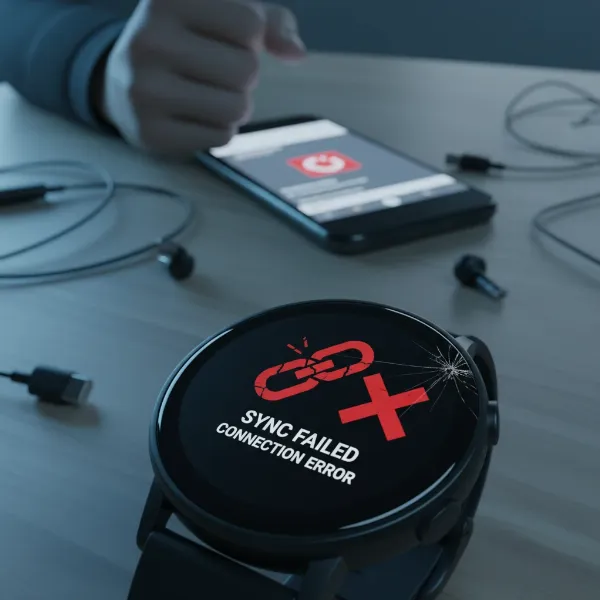 A smartwatch displaying a connection error icon, symbolizing syncing issues with a smartphone.
Common Reasons Your Smartwatch Isn’t Syncing
Understanding why your smartwatch might be encountering syncing issues is the first step toward finding a solution. Several factors, ranging from simple oversight to more complex software conflicts, can disrupt the communication between your watch and phone.
Bluetooth Connectivity Problems
Bluetooth is the primary tether between your smartwatch and phone, and its stability is crucial. Issues can arise from:
- Distance and Interference: Bluetooth has a limited range, typically around 10 meters, which can be further reduced by walls, crowded spaces, or interference from other 2.4 GHz devices like Wi-Fi routers, microwaves, or gym equipment.
- Outdated Bluetooth Drivers: Sometimes, the Bluetooth drivers on your phone might be outdated, leading to an unstable or poor connection.
- Congestion: Too many Bluetooth devices in the vicinity can overwhelm the signal, causing intermittent connections or outright failures.
|
Our Picks for the Best Smartwatch in 2026
As an Amazon Associate I earn from qualifying purchases.
|
||
| Num | Product | Action |
|---|---|---|
| 1 | Smart Watch for Men, 120 Sports Modes Smartwatch with 1.83" HD Touchsreen, IP67 Waterproof, Sleep Monitor, Bluetooth Call & Music Control Fitness Watch for Android/iPhone (Black) |

|
| 2 | WHOOP 5.0/MG Activity Tracker - 12 Month Membership - Health and Fitness Wearable – 24/7 Activity and Sleep Tracker, Personalized Coaching, Menstrual Cycle Insights – 14+ Days Battery Life |
|
| 3 | Amazfit Bip 6 Smart Watch 46mm, 14 Day Battery, 1.97" AMOLED Display, GPS & Free Maps, AI, Bluetooth Call & Text, Health, Fitness & Sleep Tracker, 140+ Workout Modes, 5 ATM Water-Resistance, Black |
|
| 4 | Smart Watch for Men, 120+ Sports Modes Smartwatch with 1.83" HD Touchsreen, Sleep Monitor, IP67 Waterproof, Bluetooth Call & Music Control Fitness Watch for iPhone/Android Black |
|
| 5 | Smart Watch for Men Women Compatible with iPhone Samsung Android Phone 1.83 inch Full Touch Screen IP68 Waterproof Bluetooh Fitness Tracker Heart Rate/Sleep Monitor, Black |
|
| 6 | Apple Watch Series 11 [GPS 42mm] Smartwatch with Rose Gold Aluminum Case with Light Blush Sport Band - S/M. Sleep Score, Fitness Tracker, Health Monitoring, Always-On Display, Water Resistant |
|
| 7 | Apple Watch Series 11 [GPS 46mm] Smartwatch with Jet Black Aluminum Case with Sport Band - M/L. Sleep Score, Fitness Tracker, Health Monitoring, Always-On Display, Water Resistant |
|
| 8 | SAMSUNG Galaxy Watch 7 40mm Bluetooth AI Smartwatch w/Energy Score, Wellness Tips, Heart Rate Tracking, Sleep Monitor, Fitness Tracker, 2024, Cream [US Version, 1Yr Manufacturer Warranty] |
|
| 9 | Smart Watch, 2026 AMOLED 1.43" Fitness Smartwatch for Men Women, Bluetooth 5.4 Call, 130+Sports Modes, 60+Days Flashlight, Heart Rate/Sleep Monitor, IP68 Waterproof Activity Tracker for Android iOS |
|
| 10 | Smart Watch with Alexa Built-in, 1.83" HD Touchscreen Fitness Tracker with Bluetooth Calling, Fitness Watch with Heart Rate/Sleep Monitor, 120+ Sports Modes, IP68 Waterproof Smartwatch for Android iOS |
|
Outdated Software or Firmware
Software is constantly evolving, and a mismatch between versions can cause compatibility headaches.
- Watch OS: The operating system on your smartwatch might have a bug fix or new feature requiring an update.
- Phone OS: Your smartphone’s operating system (iOS or Android) could have introduced changes that require a corresponding update from your watch manufacturer or app developer.
- Companion App: The dedicated app on your phone that manages your smartwatch often requires updates to maintain seamless syncing.
Incorrect App Permissions and Settings
For your smartwatch to fully function and sync data, its companion app needs specific permissions.
- Revoked Permissions: After an OS update or sometimes seemingly at random, permissions for health data, location, notifications, or contact access can be revoked, silently halting data flow.
- Background Activity Restrictions: Operating systems often have aggressive power-saving measures that can restrict background app activity, preventing your watch app from syncing data when not actively open.
Network Instability
While Bluetooth handles direct device-to-device communication, many smartwatches rely on your phone’s internet connection for cloud syncing, updates, and certain features.
- Unstable Wi-Fi or Mobile Data: A weak or inconsistent internet connection on your phone can prevent data from reaching cloud services or updating the watch.
- Crowded Networks: Public Wi-Fi or highly congested home networks can lead to packet loss and latency, slowing down or disrupting sync processes.
Battery Saver Modes
Both your phone and smartwatch typically feature power-saving modes. While beneficial for extending battery life, these modes can be a major culprit for syncing failures.
- Throttled Background Tasks: Power-saving features often pause or significantly restrict background app activity, including data synchronization, to conserve energy.
- Low-Power Behavior: When either device’s battery is critically low, certain functions, including Bluetooth and data transfers, may be temporarily disabled or limited.
Corrupted Data or Pairing Profiles
Over time, temporary glitches or corrupted data within the app or the Bluetooth pairing profile can accumulate.
- App Cache Buildup: The companion app on your phone stores temporary files (cache) which, if corrupted or overgrown, can interfere with its normal operation.
- Stalled Stacks: Internal communication processes (stacks) can get stuck, preventing new data from being sent or received.
Essential First Steps: Quick Fixes to Try
Before diving into more complex troubleshooting, begin with these fundamental checks and restarts. They often resolve the majority of syncing issues.
Check Basic Connections
Ensure the foundational elements for a connection are in place:
- Bluetooth On: Verify that Bluetooth is enabled on both your smartwatch and your smartphone. A simple toggle off and then back on can refresh the connection.
- Airplane Mode Off: Check that Airplane Mode is disabled on both devices. This mode typically turns off all wireless communications, including Bluetooth and Wi-Fi.
- Proximity: Keep your smartwatch and phone within close range, ideally within 3 to 5 meters, especially during initial pairing or heavy data transfers. Avoid physical obstructions between them.
- Battery Levels: Ensure both devices have sufficient battery charge, preferably above 50%. Low battery can trigger power-saving modes that hinder syncing.
- Internet Connection: Confirm your phone has a stable Wi-Fi or mobile data connection, as many sync operations require internet access for cloud services or updates.
Restart Both Devices
This classic IT solution works wonders for a reason. Rebooting both your smartwatch and phone can clear temporary glitches, refresh system processes, and resolve minor software conflicts.
- Restart Your Phone: Power off your smartphone completely, wait about 30 seconds, and then power it back on.
- Restart Your Smartwatch: Do the same for your smartwatch. The method varies by model, but usually involves holding a physical button until a power-off option appears.
Advanced Troubleshooting for Persistent Problems
If the quick fixes don’t resolve your syncing woes, it’s time to dig a little deeper with these advanced solutions.
1. Update Software and Firmware
Outdated software is a frequent cause of compatibility issues. Regularly checking for and installing updates can significantly improve syncing reliability.
- Update Your Smartwatch: Check for firmware updates directly on your watch (usually in the Settings > Software Update menu) or via its companion app on your phone. Perform updates over a stable Wi-Fi connection.
- Update Your Phone’s OS: Ensure your smartphone is running the latest version of iOS or Android. Navigate to your phone’s settings and look for “Software Update” or “System Update.”
- Update Companion Apps: Go to your phone’s app store (App Store for iOS, Google Play Store for Android) and check for updates for your smartwatch’s companion app (e.g., Apple Watch app, Galaxy Wearable, Garmin Connect).
2. Verify App Permissions and Background Activity
Many syncing issues stem from the companion app lacking the necessary permissions or being restricted from running in the background.
- Grant All Necessary Permissions: On your phone, go to Settings > Apps (or Apps & Notifications), find your smartwatch’s companion app, and then check its Permissions. Ensure that permissions like Location, Physical Activity (Health), Contacts, Calendar, and Notifications are granted.
- Disable Battery Optimization/Enable Background Refresh:
- Android: For the companion app, navigate to App Info > Battery (or Battery Usage) and select “Unrestricted” or “Don’t optimize.” This prevents the Android OS from aggressively putting the app to sleep.
- iOS: Go to Settings > General > Background App Refresh and ensure it’s enabled for your watch app. Also, check Low Power Mode status on both devices, as it can limit background activity.
3. Forget and Re-pair Your Smartwatch
This process essentially performs a “clean slate” for the connection, removing any corrupted pairing data and forcing a fresh link.
- Unpair from Phone’s Bluetooth Settings: On your phone, go to Settings > Bluetooth, find your smartwatch in the list of “Paired Devices” or “My Devices,” and select “Forget” or “Unpair.”
- Unpair via Companion App: Open your smartwatch’s companion app. There should be an option to unpair or disconnect your watch. This is crucial as it removes the watch from your account and resets internal settings.
- Re-pair Your Watch: Follow the initial setup instructions to pair your smartwatch with your phone again using the official companion app. Keep both devices close together throughout the process.
4. Clear App Cache and Data
Over time, an app’s cache can become bloated or corrupted, leading to performance issues and syncing failures.
- Clear Cache (Android): Go to your phone’s Settings > Apps, find your smartwatch’s companion app, then tap Storage > Clear Cache. You can also try “Clear Data” as a more aggressive step, but be aware this will log you out of the app and reset its settings.
- Reinstall App (iOS/Android): For iOS, there isn’t a direct “Clear Cache” option for most apps; instead, uninstalling and reinstalling the companion app is the equivalent and often effective solution. This also works for Android if clearing cache alone doesn’t help.
5. Reset Network Settings on Your Phone
If Bluetooth and Wi-Fi issues persist across multiple devices, resetting your phone’s network settings can often resolve underlying configuration problems.
- Android: Go to Settings > System > Reset options > Reset Wi-Fi, mobile & Bluetooth (or Reset network settings).
- iOS: Go to Settings > General > Transfer or Reset iPhone > Reset > Reset Network Settings.
- Note: This will erase all saved Wi-Fi passwords, paired Bluetooth devices, and cellular settings, so you’ll need to reconnect them afterward.
Brand-Specific Solutions
Different smartwatch ecosystems have unique features and troubleshooting steps.
Apple Watch Syncing Solutions
- Reset Sync Data: If specific data (like contacts or calendar events) isn’t syncing, open the Watch app on your iPhone, go to General > Reset > Reset Sync Data. This initiates a fresh sync for that information.
- Unpairing and Re-pairing: This is a common and effective step. In the Watch app, tap “All Watches,” then the info icon next to your watch, and select “Unpair Apple Watch.” Then, re-pair it as if new.
- Reset Watch if Pairing Stalls: If your Apple Watch gets stuck during the pairing animation, press and hold the Digital Crown until the “Reset” option appears on the watch, then tap it to restart the pairing process.
- iCloud Health Sync: If you use iCloud Health, the initial sync of extensive health data might take longer. Keep your iPhone unlocked and the Watch app open on Wi-Fi for faster consolidation.
Samsung Galaxy Watch Syncing Solutions
- Galaxy Wearable App: Ensure you’re using the correct companion app, the Galaxy Wearable app, along with any required plugins (e.g., Watch4 Plugin).
- Unrestricted Battery Usage: For the Galaxy Wearable app and Samsung Health app, go to your phone’s App Info > Battery and set it to “Unrestricted” to prevent Android’s aggressive battery optimizations from stopping background syncing.
- Manual Sync: In the Samsung Health app, you might find an option to manually sync data, typically under Menu > Settings > Sync with Samsung account.
- Reinstall Apps: If issues persist, try uninstalling and reinstalling the Galaxy Wearable app and the Samsung Health app on your phone.
When All Else Fails: Factory Reset and Support
If you’ve exhausted all other troubleshooting steps and your smartwatch still won’t sync, a factory reset is often the final user-level solution.
Factory Reset Your Smartwatch
A factory reset erases all data on your smartwatch and restores it to its original factory settings. This can resolve deep-seated software issues but will require you to set up your watch from scratch.
- Backup Data: If your smartwatch supports cloud backup (e.g., via its companion app), perform a backup before resetting to preserve settings, watch faces, and health history.
- Perform Reset: On your smartwatch, navigate to Settings > General > Reset (or System > Disconnect & Reset). Follow the on-screen prompts to erase all content and settings.
- Re-pair After Reset: Once reset, you’ll need to pair your watch with your phone again using the companion app.
Contact Customer Support
If even a factory reset doesn’t resolve the issue, it’s time to contact the manufacturer’s customer support. They can provide brand-specific guidance, diagnose hardware problems, or offer advanced solutions that might not be publicly available. Be prepared to provide details about your watch model, phone model, OS versions, and the troubleshooting steps you’ve already taken.
Conclusion
A smartwatch that refuses to sync can be a significant inconvenience, cutting you off from essential data and notifications. By systematically working through these troubleshooting steps, you can address most common syncing problems, from simple Bluetooth glitches to more complex software conflicts. Remember to start with basic checks, move on to software updates and app settings, and only resort to unpairing or factory resets if absolutely necessary. With a little patience and persistence, you can restore the seamless connection between your smartwatch and phone, allowing you to fully leverage the power and convenience of your wearable device. Don’t let a minor technical hiccup keep you from tracking your fitness goals, receiving important alerts, and staying connected effortlessly.
Frequently Asked Questions
How long should the first sync take?
The initial sync time for a new smartwatch can vary significantly based on the amount of data, network speed, and device models. For minimal data, it might be a few minutes, but if you’re transferring gigabytes of health history or apps, it could take anywhere from 10 minutes to over an hour. It’s best to have both devices fully charged and connected to stable Wi-Fi during the first sync.
Will a factory reset delete everything?
Yes, a factory reset on your smartwatch will erase all local data, including settings, downloaded apps, watch faces, and any health data not yet synced to your phone or cloud. It restores the watch to its original out-of-the-box state. Always back up your watch data via its companion app before performing a factory reset.
What if my watch connects but data isn’t syncing?
If your watch appears connected but data (like steps, heart rate, or notifications) isn’t syncing, the problem often lies with app permissions, background activity restrictions, or specific data sync settings within the companion app. Ensure the app has all necessary permissions, is allowed to run in the background without battery optimization, and check for any “Reset Sync Data” options within the app itself.
Can third-party apps cause syncing issues?
Yes, sometimes a specific third-party app installed on your smartwatch or phone can interfere with the overall syncing process. If you notice issues after installing a new app, try uninstalling it to see if the problem resolves. Ensure all apps are updated to their latest versions to minimize compatibility conflicts.