It’s a familiar and frustrating scenario: your device shows it’s connected to Wi-Fi, but no webpages load, emails won’t send, and streaming comes to a halt. The dreaded “Not Connected to Internet” message, often accompanied by “Connected, Secured,” signals a breakdown between your local network and the vast world of the internet. This isn’t just an inconvenience; it can cripple productivity and disconnect you from essential services. Whether it’s a simple glitch or a deeper network configuration problem, tackling this issue systematically is key. This guide will walk you through a comprehensive set of troubleshooting steps, from quick fixes to more advanced solutions, ensuring you can identify the root cause and restore your internet connection.
Understanding the “No Internet” Message
When your device displays “Connected, No Internet,” it means your computer or smartphone is successfully communicating with your router, establishing a local network connection. However, the router itself is failing to connect to the wider internet provided by your Internet Service Provider (ISP) or is unable to properly relay internet traffic to your device. This distinction is crucial because it helps narrow down where the problem lies: within your device, your home network (router/modem), or with your ISP. Common culprits range from simple reboots needed for overloaded equipment to complex software conflicts or even service outages.
Initial Troubleshooting: The Quick Fixes
Before diving into complex diagnostics, start with these fundamental steps. They often resolve the majority of “Not Connected to Internet” errors.
Restart Your Devices and Network Equipment
The classic IT advice, “Have you tried turning it off and on again?” is a classic for a reason. A simple reboot can clear temporary software glitches and refresh network connections.
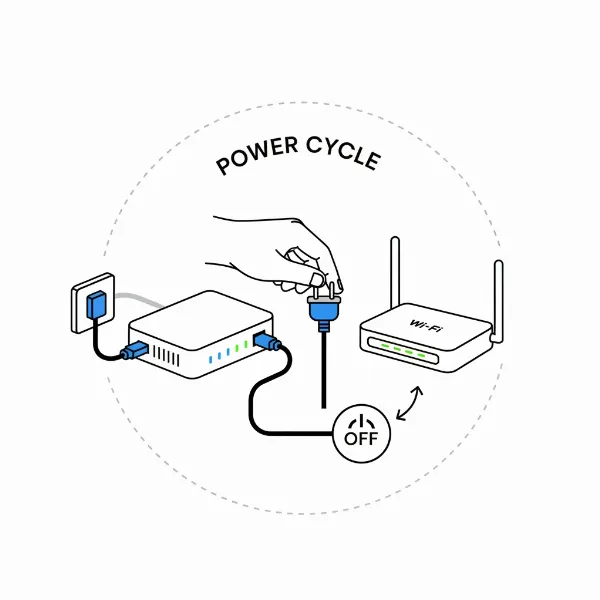 An illustration of a person power cycling a modem and router to fix internet connection.
- Computer/Phone Restart: Completely shut down your computer or phone, wait for 30 seconds, and then power it back on.
- Modem and Router Power Cycle: This is one of the most effective first steps. Unplug your modem from its power source, then unplug your Wi-Fi router. Wait for at least 30 seconds (some suggest up to a minute) to allow internal memory to clear. Plug the modem back in first, wait for all its indicator lights to stabilize (usually 1-2 minutes), then plug in your router and wait for its lights to settle. This ensures a fresh connection to your ISP.
|
Our Picks for the Best Smartwatch in 2026
As an Amazon Associate I earn from qualifying purchases.
|
||
| Num | Product | Action |
|---|---|---|
| 1 | Apple Watch Series 11 [GPS 46mm] Smartwatch with Jet Black Aluminum Case with Sport Band - M/L. Sleep Score, Fitness Tracker, Health Monitoring, Always-On Display, Water Resistant |
![Check Apple Watch Series 11 [GPS 46mm] Smartwatch with Jet Black Aluminum Case with Sport Band - M/L. Sleep Score, Fitness Tracker, Health Monitoring, Always-On Display, Water Resistant on Amazon](https://smartwatchus.com/wp-content/plugins/amazon-tables/assets/images/buy.png)
|
| 2 | Smart Watch for Men, 120+ Sports Modes Smartwatch with 1.83" HD Touchsreen, Sleep Monitor, IP67 Waterproof, Bluetooth Call & Music Control Fitness Watch for iPhone/Android Black |
|
| 3 | Amazfit Bip 6 Smart Watch 46mm, 14 Day Battery, 1.97" AMOLED Display, GPS & Free Maps, AI, Bluetooth Call & Text, Health, Fitness & Sleep Tracker, 140+ Workout Modes, 5 ATM Water-Resistance, Black |
|
| 4 | SAMSUNG Galaxy Watch 7 40mm Bluetooth AI Smartwatch w/Energy Score, Wellness Tips, Heart Rate Tracking, Sleep Monitor, Fitness Tracker, 2024, Cream [US Version, 1Yr Manufacturer Warranty] |
|
| 5 | Smart Watch, 2026 AMOLED 1.43" Fitness Smartwatch for Men Women, Bluetooth 5.4 Call, 130+Sports Modes, 60+Days Flashlight, Heart Rate/Sleep Monitor, IP68 Waterproof Activity Tracker for Android iOS |
|
| 6 | Smart Watch with Alexa Built-in, 1.83" HD Touchscreen Fitness Tracker with Bluetooth Calling, Fitness Watch with Heart Rate/Sleep Monitor, 120+ Sports Modes, IP68 Waterproof Smartwatch for Android iOS |
|
| 7 | Apple Watch Series 11 [GPS 42mm] Smartwatch with Rose Gold Aluminum Case with Light Blush Sport Band - S/M. Sleep Score, Fitness Tracker, Health Monitoring, Always-On Display, Water Resistant |
|
| 8 | WHOOP 5.0/MG Activity Tracker - 12 Month Membership - Health and Fitness Wearable – 24/7 Activity and Sleep Tracker, Personalized Coaching, Menstrual Cycle Insights – 14+ Days Battery Life |
|
| 9 | Smart Watch for Men, 120 Sports Modes Smartwatch with 1.83" HD Touchsreen, IP67 Waterproof, Sleep Monitor, Bluetooth Call & Music Control Fitness Watch for Android/iPhone (Black) |
|
| 10 | Smart Watch for Men Women Compatible with iPhone Samsung Android Phone 1.83 inch Full Touch Screen IP68 Waterproof Bluetooh Fitness Tracker Heart Rate/Sleep Monitor, Black |
|
Check Your Physical Connections
Loose or damaged cables are a surprisingly common cause of connectivity issues.
- Inspect All Cables: Ensure that the Ethernet cable connecting your modem to your router is secure at both ends. Also, check the coaxial or fiber optic cable connecting your modem to the wall. Look for any visible signs of wear, kinks, or damage. A loose connection can cause intermittent drops or a complete loss of internet access.
Rule Out ISP Outages
Sometimes, the problem isn’t with your equipment at all, but with your internet service provider.
- Check for Service Outages: Use a different device (like a smartphone on cellular data) to visit your ISP’s website or check a third-party outage detection site like DownDetector. If there’s a reported outage in your area, you’ll simply need to wait for your provider to resolve the issue. This step saves you from unnecessary troubleshooting.
Toggle Wi-Fi (and Mobile Data for Phones)
For mobile devices, switching between connection types can sometimes kickstart a stalled connection.
- For Phones/Tablets: Go to your device’s settings, turn Wi-Fi off, and then turn it back on. If you have mobile data, try turning Wi-Fi off and mobile data on to see if you can connect via cellular, then switch back to Wi-Fi.
- For Laptops: Ensure your laptop’s physical Wi-Fi switch (if it has one) is on, and that Wi-Fi is enabled in your operating system’s network settings.
Run the Built-in Network Troubleshooter (Windows)
Windows operating systems have built-in tools that can often diagnose and fix common network issues automatically.
- Windows Troubleshooter: In Windows, navigate to
Settings > Network & Internet > Status, and then select “Network troubleshooter.” Follow the on-screen prompts. This tool can identify problems with network adapters, IP configuration, and other settings.
Deeper Dive: Addressing Common Software & Settings Issues
If the quick fixes don’t work, the problem likely lies in your device’s or router’s software configuration.
Forget and Reconnect to Your Wi-Fi Network
Your device might be holding onto outdated or corrupted network settings for your Wi-Fi network.
- Windows: Go to
Settings > Network & internet > Wi-Fi > Manage known networks. Select your network and click “Forget.” Then, find your network again in the list of available networks and reconnect, entering your password. - macOS: Go to
System Settings > Network > Wi-Fi, clickDetailsnext to your network, then click “Forget This Network.” Reconnect as usual. - Mobile: Go to Wi-Fi settings, tap on your network, and select “Forget” or “Remove.” Then, reconnect.
Release, Renew IP Address, and Flush DNS
Incorrect IP addresses or corrupted DNS cache can prevent internet access even when connected to Wi-Fi.
- Open Command Prompt as Administrator:
- Type
ipconfig /releaseand press Enter. This releases your current IP address. - Type
ipconfig /renewand press Enter. This requests a new IP address from your router. - Type
ipconfig /flushdnsand press Enter. This clears your device’s DNS cache, which stores IP addresses of websites you’ve visited. A corrupted cache can lead to connectivity issues.
- Type
Reset TCP/IP Stack
If releasing/renewing your IP and flushing DNS doesn’t help, resetting the entire TCP/IP stack can resolve deeper network configuration problems.
- Open Command Prompt as Administrator:
- Type
netsh winsock resetand press Enter. - Type
netsh int ip resetand press Enter. - Restart your computer after running these commands.
- Type
Check for IP Address Conflicts (169.254.x.x)
An IP address starting with 169.254.x.x indicates that your device failed to obtain a valid IP address from the DHCP server (usually your router).
- Verify IP Address: Open Command Prompt and type
ipconfig. Look for your IPv4 Address. If it starts with 169.254, it signals a problem with DHCP on your router or a communication issue between your device and router. Ensure DHCP is enabled in your router’s settings (refer to your router’s manual for this).
Verify DNS Server Settings
DNS (Domain Name System) translates website names into IP addresses. If your DNS server is unreachable or incorrect, you won’t be able to access websites.
- Check DNS: In Command Prompt, type
ipconfig /all | findstr /c:"DNS Servers". Note the IP address. Then, try topingthat DNS server. If you don’t get a reply, consider changing your DNS server to a public one like Google DNS (8.8.8.8 and 8.8.4.4) or Cloudflare DNS (1.1.1.1 and 1.0.0.1) in your network adapter settings.
Disable Proxy Settings
Sometimes, proxy server settings can interfere with your internet connection.
- Windows: Go to
Settings > Network & internet > Proxy. Ensure “Automatically detect settings” is on and “Use a proxy server” is off.
Temporarily Disable Firewall/Antivirus
Security software can sometimes mistakenly block internet access for legitimate applications or even the entire system.
- Test Your Firewall: Temporarily disable your third-party firewall or antivirus software. If your internet connection returns, you’ve found the culprit. Remember to re-enable it and configure its settings to allow internet access. If you only use Windows Defender Firewall, ensure no specific rules are blocking your connection.
Hardware and Driver Solutions
Beyond software settings, underlying hardware and drivers can cause persistent “No Internet” issues.
Update Network Adapter Drivers
Outdated or corrupted network adapter drivers can prevent your device from communicating properly with your router and the internet.
- Device Manager (Windows): Open Device Manager, expand “Network adapters,” right-click your Wi-Fi adapter, and select “Update driver.” If that doesn’t work, you might need to visit your computer manufacturer’s website to download the latest driver for your specific model.
Disable Power Saving for Wi-Fi Adapter
Some Windows power saving features can turn off your Wi-Fi adapter to conserve battery, leading to connection drops or no internet.
- Device Manager (Windows): In Device Manager, right-click your Wi-Fi adapter, go to “Properties,” then the “Power Management” tab. Uncheck “Allow the computer to turn off this device to save power.”
Consider Switching Wi-Fi Bands (2.4 GHz vs 5 GHz)
Many modern routers broadcast Wi-Fi on two frequency bands: 2.4 GHz and 5 GHz. Each has pros and cons, and switching might resolve interference issues.
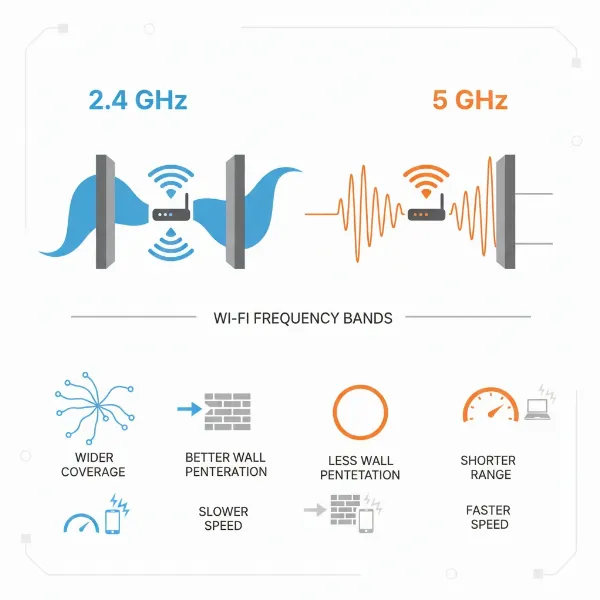 An infographic comparing 2.4 GHz and 5 GHz Wi-Fi bands for range and speed.
- 2.4 GHz: Offers wider coverage and penetrates walls better, but is more prone to interference from other devices.
- 5 GHz: Provides faster speeds and less interference, but has a shorter range and is more easily blocked by obstacles.
If your router broadcasts both, try connecting to the other band to see if it improves your connection.
Test with an Ethernet Cable
If possible, connect your computer directly to your router or modem using an Ethernet cable.
- Isolate the Issue: If you can access the internet via Ethernet, it confirms the problem is with your Wi-Fi connection, Wi-Fi adapter, or router’s wireless functionality. If you still have no internet via Ethernet, the problem is likely with your modem or ISP.
Router-Specific Checks
Sometimes, the router itself needs attention beyond a simple reboot.
Access Router Settings (DHCP, MAC Filtering, Firmware Updates)
You can usually access your router’s administration page by typing its IP address (often 192.168.1.1 or 192.168.0.1) into a web browser. The login credentials are often on a sticker on the router itself.
- DHCP Server: Ensure the DHCP server is enabled, as this is what assigns IP addresses to devices on your network.
- MAC Address Filtering: Some routers have MAC address filtering, which only allows specific devices to connect. Make sure your device’s MAC address isn’t being blocked, or temporarily disable this feature to test.
- Firmware Updates: Outdated router firmware can cause instability and connectivity issues. Check your router manufacturer’s website for the latest firmware and instructions on how to update it.
“Often, the router is the unsung hero of your home network. Just like any other piece of technology, it needs occasional attention, from firmware updates to simple reboots, to maintain a stable internet connection.” – John Doe, Network Engineer
Factory Reset Your Router (Last Resort)
A factory reset will revert your router to its original settings, wiping out any custom configurations. Use this only as a last resort, as you’ll need to set up your Wi-Fi name, password, and any other custom settings again.
- Reset Button: Most routers have a small reset button (often recessed, requiring a paperclip) that you’ll need to press and hold for 10-30 seconds. Consult your router’s manual for specific instructions.
When All Else Fails: Contact Your ISP
If you’ve systematically worked through all the troubleshooting steps and still can’t connect, it’s time to contact your Internet Service Provider. They can perform remote diagnostics on your line and equipment, check for network issues on their end, or schedule a technician visit if necessary. Provide them with the details of the troubleshooting you’ve already performed to help them diagnose the issue more efficiently.
Conclusion
Encountering a “Not Connected to Internet” error can be incredibly disruptive, but by following a logical, step-by-step troubleshooting process, you can often pinpoint and resolve the issue yourself. From the simple act of restarting your modem and router to diving into network adapter drivers and router configurations, each step helps eliminate potential culprits. Remember to always start with the easiest solutions and gradually move to more complex ones. With a bit of patience and this comprehensive guide, you’ll be back online, browsing, streaming, and connecting with the world in no time. What connectivity challenge will you conquer next?
Frequently Asked Questions
Why does my Wi-Fi say “Connected, No Internet” but it’s not working?
This message means your device successfully connected to your local Wi-Fi network (your router), but your router isn’t getting data from your Internet Service Provider (ISP) or can’t properly forward it to your device. Common causes include a malfunctioning modem or router, an ISP outage, incorrect network settings, or an IP address conflict.
How often should I restart my router?
It’s generally a good practice to power cycle your router and modem at least once a month, or more frequently if you experience intermittent connectivity issues or slow speeds. This helps clear temporary glitches, refresh network connections, and prevent performance degradation over time.
What’s the difference between 2.4 GHz and 5 GHz Wi-Fi?
The 2.4 GHz band offers a wider coverage area and better penetration through walls and obstacles, but typically provides slower speeds and is more susceptible to interference. The 5 GHz band delivers faster speeds and lower latency, ideal for gaming and streaming, but has a shorter range and is more easily obstructed.