Your smartwatch is more than just a time-telling device; it’s a personal statement, a fitness coach, and a communication hub, all on your wrist. Customizing its watch face and complications is key to unlocking its full potential, transforming it from a generic gadget into a truly indispensable tool tailored to your unique needs and style. Whether you’re a fitness enthusiast needing quick access to your heart rate, a busy professional tracking your next appointment, or someone who simply loves a fresh look, mastering customization allows you to make your smartwatch work smarter for you.
This comprehensive guide, brought to you by the Admin of SmartwatchUS.com with over a decade of hands-on experience, will walk you through the nuances of changing watch faces and managing complications across popular smartwatch platforms. You’ll learn the essential steps, discover platform-specific tips, and uncover advanced techniques to personalize your device like a seasoned pro.
Understanding Watch Faces and Complications
Before diving into the “how-to,” let’s clarify what watch faces and complications are and why their customization is so powerful.
What are Watch Faces?
|
Our Picks for the Best Smartwatch in 2026
As an Amazon Associate I earn from qualifying purchases.
|
||
| Num | Product | Action |
|---|---|---|
| 1 | Apple Watch Series 11 [GPS 46mm] Smartwatch with Jet Black Aluminum Case with Sport Band - M/L. Sleep Score, Fitness Tracker, Health Monitoring, Always-On Display, Water Resistant |
![Check Apple Watch Series 11 [GPS 46mm] Smartwatch with Jet Black Aluminum Case with Sport Band - M/L. Sleep Score, Fitness Tracker, Health Monitoring, Always-On Display, Water Resistant on Amazon](https://smartwatchus.com/wp-content/plugins/amazon-tables/assets/images/buy.png)
|
| 2 | Apple Watch Series 11 [GPS 42mm] Smartwatch with Rose Gold Aluminum Case with Light Blush Sport Band - S/M. Sleep Score, Fitness Tracker, Health Monitoring, Always-On Display, Water Resistant |
|
| 3 | Smart Watch for Men, 120+ Sports Modes Smartwatch with 1.83" HD Touchsreen, Sleep Monitor, IP67 Waterproof, Bluetooth Call & Music Control Fitness Watch for iPhone/Android Black |
|
| 4 | SAMSUNG Galaxy Watch 7 40mm Bluetooth AI Smartwatch w/Energy Score, Wellness Tips, Heart Rate Tracking, Sleep Monitor, Fitness Tracker, 2024, Cream [US Version, 1Yr Manufacturer Warranty] |
|
| 5 | Smart Watch with Alexa Built-in, 1.83" HD Touchscreen Fitness Tracker with Bluetooth Calling, Fitness Watch with Heart Rate/Sleep Monitor, 120+ Sports Modes, IP68 Waterproof Smartwatch for Android iOS |
|
| 6 | WHOOP 5.0/MG Activity Tracker - 12 Month Membership - Health and Fitness Wearable – 24/7 Activity and Sleep Tracker, Personalized Coaching, Menstrual Cycle Insights – 14+ Days Battery Life |
|
| 7 | Smart Watch for Men, 120 Sports Modes Smartwatch with 1.83" HD Touchsreen, IP67 Waterproof, Sleep Monitor, Bluetooth Call & Music Control Fitness Watch for Android/iPhone (Black) |
|
| 8 | Smart Watch, 2026 AMOLED 1.43" Fitness Smartwatch for Men Women, Bluetooth 5.4 Call, 130+Sports Modes, 60+Days Flashlight, Heart Rate/Sleep Monitor, IP68 Waterproof Activity Tracker for Android iOS |
|
| 9 | Amazfit Bip 6 Smart Watch 46mm, 14 Day Battery, 1.97" AMOLED Display, GPS & Free Maps, AI, Bluetooth Call & Text, Health, Fitness & Sleep Tracker, 140+ Workout Modes, 5 ATM Water-Resistance, Black |
|
| 10 | Smart Watch for Men Women Compatible with iPhone Samsung Android Phone 1.83 inch Full Touch Screen IP68 Waterproof Bluetooh Fitness Tracker Heart Rate/Sleep Monitor, Black |
|
A watch face is the primary display of your smartwatch, dictating its overall aesthetic and the fundamental layout of information. Think of it as the canvas of your wrist. Watch faces can range from classic analog designs that mimic traditional timepieces to futuristic digital displays, minimalist layouts, or vibrant, animated themes. They set the tone for your smartwatch experience, influencing both its visual appeal and how information is presented.
What are Complications?
Complications are small, interactive elements on your watch face that display specific pieces of information or provide quick access to apps. Derived from traditional watchmaking, where “complications” referred to functions beyond telling time (like moon phases or chronographs), smartwatch complications bring glanceable data to your digital display. These can include anything from the date, weather, activity rings, upcoming calendar events, battery life, or shortcuts to your favorite apps. They are the functional widgets that transform a static watch face into a dynamic, informative dashboard.
Why Customize Them?
Customizing your watch face and complications offers numerous benefits:
- Personalization: Express your individual style, mood, or match your outfit with a vast array of designs and color schemes.
- Efficiency: Get the information you need at a glance without navigating through menus. Quick access to key data like your daily steps or the current temperature can save precious seconds throughout your day.
- Adaptability: Easily switch between different watch face setups for various activities. A data-rich face for workouts, a professional one for meetings, or a playful design for weekends.
- Improved User Experience: A well-customized watch face can significantly enhance how you interact with your device, making it more intuitive and enjoyable to use.
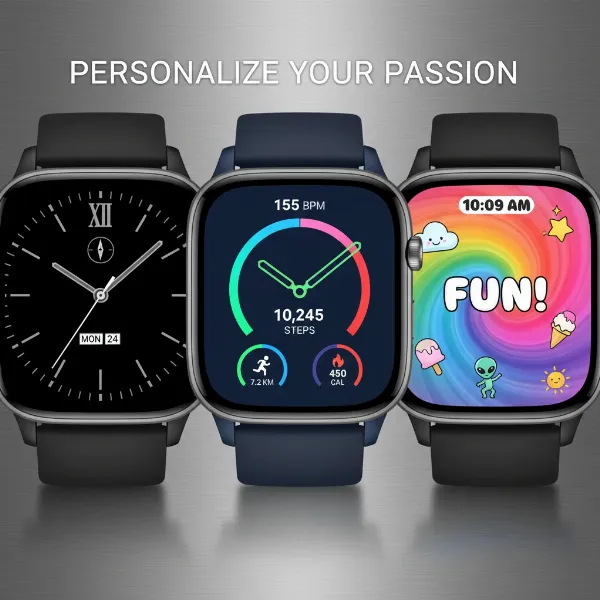 A collage of diverse smartwatch watch faces showcasing various customization options and styles.
The Universal Steps to Changing Your Smartwatch’s Look
While specific menus and buttons may vary by brand, the core process for modifying your smartwatch’s display generally follows these two pathways: on-watch customization and using a companion smartphone app.
On-Watch Customization
Most smartwatches allow for direct customization from the device itself. This is often the quickest way to make minor adjustments or switch between saved watch faces.
- Activate Edit Mode: Begin by ensuring your current watch face is displayed. Then, typically, you’ll touch and hold the screen. This action usually triggers an “Edit,” “Customize,” or similar option to appear.
- Browse Watch Faces: Once in edit mode, you can often swipe left or right to scroll through a collection of pre-installed or previously downloaded watch faces. Tap on the one you wish to select.
- Customize Style Elements: With a watch face selected, you might then see options to customize its style. This could involve changing the background color, the design of the hands (for analog faces), the font of the digital time, or other aesthetic elements. Use the digital crown, bezel, or swiping gestures to navigate these options.
- Manage Complications: Swipe further (often to the far left or right screen) to reveal available complication slots. Tap on a slot you wish to change, then use the digital crown or swipe to browse through the available data sources or app shortcuts. Select your preferred complication.
- Save Your Changes: Once satisfied, press the digital crown or a dedicated button to exit the edit mode and save your new watch face.
Using the Companion App
For more extensive customization, browsing a larger gallery, or creating highly personalized designs, your smartwatch’s companion app on your smartphone is usually the go-to tool.
- Open the App: Launch the dedicated app for your smartwatch (e.g., Apple Watch app, Galaxy Wearable, Garmin Connect IQ, Fitbit app).
- Navigate to Watch Faces/Gallery: Look for a section clearly labeled “Watch Faces,” “Gallery,” “Clocks,” or “My Watch.”
- Explore and Select: Browse through the vast collection of available watch faces. Many apps offer categories (e.g., “New,” “Digital,” “Analog,” “Activity”).
- Deep Customization: Once you select a watch face, the app typically provides a more detailed customization interface than the watch itself. Here, you can often:
- Change colors, styles, and layouts.
- Precisely select and position complications from a comprehensive list of apps and data sources.
- Save multiple customized versions of the same watch face.
- Sync to Watch: After customizing, confirm your choices, and the app will sync the new watch face to your smartwatch. This usually happens automatically but may sometimes require a manual “Save” or “Apply” tap.
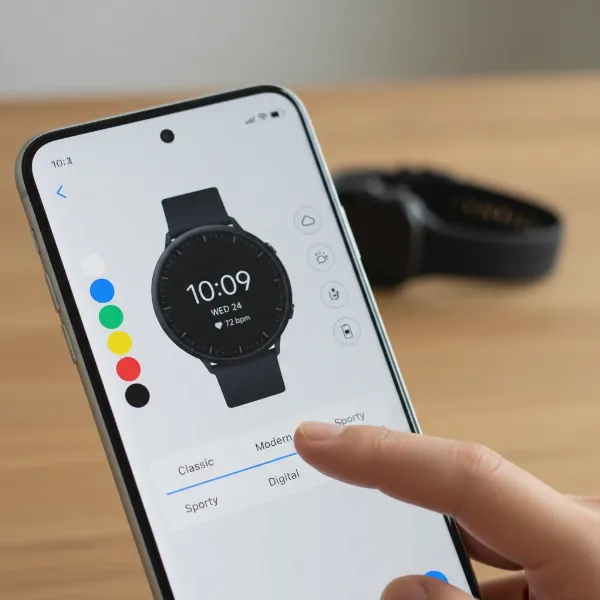 A smartphone screen displaying a smartwatch companion app with watch face customization interface.
Platform-Specific Guides
Each major smartwatch ecosystem offers its own unique approach to watch face and complication customization. Understanding these differences can help you navigate the options more effectively.
Apple Watch (watchOS)
Apple Watch excels in a seamless integration between its hardware, software, and the iPhone companion app.
Changing Faces
On your Apple Watch, simply touch and hold the current watch face, then swipe left or right to browse through your existing collection. Tap on a face to select it. For a more organized approach, the Watch app on your iPhone offers a “Face Gallery” where you can explore, add, and organize new faces. You can even rearrange the order of your watch faces from the “My Watch” tab on your iPhone.
Adding & Editing Complications
Apple Watch complications are highly versatile. To add or edit them directly on your watch:
- With the watch face showing, touch and hold the display.
- Tap “Edit.”
- Swipe left until you reach the complication screens (if available for that face).
- Tap on a specific complication slot to select it.
- Turn the Digital Crown to scroll through the available complications from various apps like Activity, Calendar, Weather, or third-party applications.
- Press the Digital Crown to save your changes, then tap the face to activate it.
The iPhone Watch app also provides an intuitive way to manage complications, often displaying a visual representation of your chosen watch face with clearly labeled slots for customization.
“Apple Watch’s Infograph and Modular faces are powerhouses for complications, allowing users to display a wealth of information at a glance, making them incredibly popular among productivity-focused individuals.”
Samsung Galaxy Watch (Wear OS / Tizen)
Samsung Galaxy Watches, particularly those running Wear OS, offer a rich customization experience, often bridging the gap between aesthetics and functionality.
Changing Faces
Similar to Apple Watch, you can touch and hold the watch face on your Galaxy Watch, then swipe left or right to cycle through your installed faces. Tap to select. More extensive options are found within the Galaxy Wearable app on your paired smartphone.
Customizing Complications
The Galaxy Wearable app is your primary hub for deep customization:
- Open the Galaxy Wearable app on your phone.
- Navigate to “Watch faces.”
- Select the desired watch face and tap “Customize” (often represented by a pencil icon).
- Scroll through the customization options, which will include sections for background, colors, and “Complications.”
- Tap on a complication slot and choose the desired information source or app shortcut.
- Tap “Save” to apply the changes to your watch.
Directly on the watch, after a long press, you can also often tap “Customize” and swipe to different sections to modify colors, styles, and complications. Many Wear OS watches also support a wide array of third-party complications that can be installed from the Google Play Store, further expanding your data display options.
Garmin Smartwatches (Garmin OS)
Garmin smartwatches, known for their robust fitness tracking capabilities, offer functional customization focused on data fields.
Changing Faces and Data Fields
Garmin provides three primary avenues for personalizing your watch face:
- Preinstalled Watch Faces: On your watch, hold the Menu/Up button, select “Watch Face,” then swipe through options. Many preinstalled faces allow for basic customization by selecting “Edit” and then adjusting style and data fields.
- Connect IQ™ Store: This is Garmin’s app store, offering thousands of watch faces.
- Open the Connect IQ Store app on your phone.
- Select “My Device” > “My Watch Faces.”
- Choose a watch face, then go into “Settings” to adjust available options (color schemes, data fields). Note that not all Connect IQ faces are customizable, especially if they are from third-party developers.
- Face It® App: Available in the Connect IQ Store, Face It allows you to turn your personal photos into unique watch faces, providing a highly personalized aesthetic.
Garmin’s “complications” are typically referred to as “data fields” and are crucial for fitness enthusiasts, displaying metrics like heart rate, VO2 max, steps, or elevation. The availability and size of these data fields depend heavily on the chosen watch face.
Fitbit Smartwatches (Fitbit OS)
Fitbit smartwatches prioritize health and fitness tracking, and their “clock faces” are designed with this in mind, often integrating key metrics directly.
Changing “Clock Faces”
Unlike other platforms, changing your Fitbit’s clock face is predominantly done through the Fitbit app on your paired smartphone:
- Open the Fitbit app on your phone.
- Tap your account icon (usually top-left).
- Select your Fitbit smartwatch (e.g., Versa, Sense).
- Tap “Gallery.”
- Select “Clocks” from the top menu to browse the extensive collection.
- When you find a clock face you like, tap it, then tap “Install.”
- You may need to approve permissions for the clock face to access your activity data or other information. Some premium clock faces might require a payment.
Fitbit generally offers fewer direct “complication” slots in the same flexible way as Apple or Samsung. Instead, data like step count, heart rate, or battery life are often integrated directly into the design of the clock face itself. You can usually install up to five clock faces on your Fitbit at a time.
Advanced Customization Techniques
Once you’ve mastered the basics, consider these advanced strategies to truly make your smartwatch display your own.
Third-Party Watch Face Stores
Beyond the built-in galleries, platforms like Facer (for Apple Watch and Wear OS), Watch Face Studio (for Samsung), and Connect IQ (for Garmin) offer independent ecosystems with hundreds of thousands of watch faces, many created by independent designers. These platforms often provide more unique designs and advanced features not found in the official stores.
Optimizing for Battery Life vs. Information Density
A watch face with many active complications or animated elements can consume more battery. For extended battery life, opt for simpler, static watch faces with fewer complications. If information is paramount, choose faces like Apple’s Infograph or Samsung’s Digital Dashboard that can display a wealth of data, but be mindful of their potential impact on daily charge.
Creating Your Own
For the truly ambitious, tools like Samsung’s Watch Face Studio allow developers and enthusiasts to design and build their own watch faces from scratch, offering unparalleled creative control. While this requires technical know-how, it’s the ultimate form of personalization.
Choosing the Right Watch Face and Complications for Your Lifestyle
The “best” watch face and complications depend entirely on your individual routine and priorities.
For Fitness Enthusiasts
Prioritize watch faces that prominently display activity rings, heart rate, step count, and quick shortcuts to workout apps or timers. Garmin’s data-field rich faces or Apple’s Activity and Modular faces are excellent choices.
For Professionals
Opt for sophisticated, clean watch faces with complications for calendar appointments, world clock, quick access to email/messaging, or a minimalist aesthetic that fits a formal setting. Apple’s GMT or Samsung’s Dashboard faces can be highly effective.
For Everyday Style
Focus on watch faces that complement your fashion sense. Whether it’s a classic analog look, a vibrant digital display, or a minimalist design, prioritize aesthetics. Complications like weather, date, or battery life are usually sufficient and unobtrusive.
Conclusion
Customizing your smartwatch’s watch face and complications is a powerful way to enhance both its functionality and its personal appeal. By taking the time to explore the options available on your specific device—whether through on-watch controls or a companion smartphone app—you can craft a smartwatch experience that perfectly aligns with your lifestyle. From the extensive complication options on Apple Watch and Samsung Galaxy Watch to the data-driven fields of Garmin and the health-focused clock faces of Fitbit, there’s a world of personalization waiting for you. Dive in, experiment, and discover how a perfectly tuned display can make your smartwatch an even more indispensable part of your day.
What’s your go-to watch face, and which complications do you find most essential for your daily routine?
Frequently Asked Questions
How do I change the color scheme of my watch face?
Most smartwatches allow you to change the color scheme directly from the watch’s customization menu (long press on the watch face, then ‘Edit’ or ‘Customize’) or through the companion app on your phone, where you can select specific color palettes or accent colors.
Can I use a photo as my watch face?
Yes, many smartwatches, including Apple Watch (via the Photos face), Garmin (with the Face It app), and some Wear OS and Fitbit models, allow you to use a personal photo as your watch face, often with options to add minimal complications.
Why can’t I add more complications to my watch face?
The number and type of complications you can add depend on the specific watch face design. Some faces are designed with limited or no complication slots, while others, like Apple’s Infograph, offer many. If a face doesn’t show complication options, it’s likely a design limitation.
Do third-party watch faces affect battery life?
Yes, third-party watch faces, especially those with complex animations, frequent data refreshes, or numerous active complications, can potentially consume more battery than simpler, optimized stock watch faces. It’s often a trade-off between features and battery longevity.
How do I delete an unwanted watch face?
On most smartwatches, you can delete a watch face by going into the watch face selection menu (long press on the current face), swiping to the face you wish to remove, and then usually swiping up or looking for a “Remove” or “Delete” option. The companion phone app also often allows for easier management and deletion of faces.