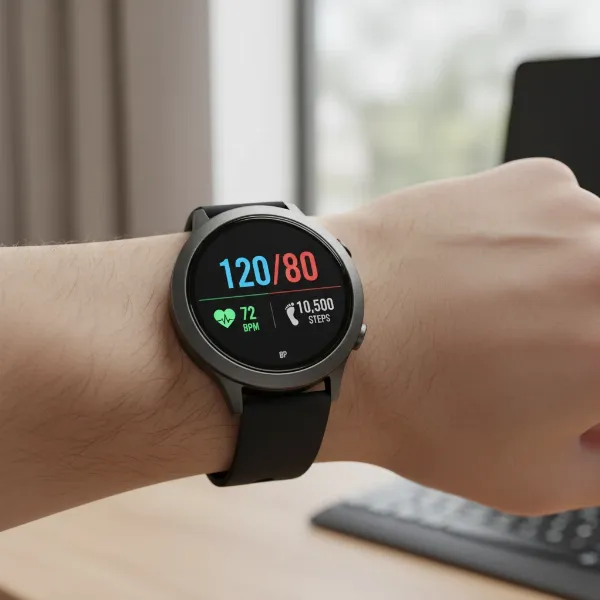
Few things are as frustrating as missing important messages, especially when you rely on your smartwatch for instant notifications. You look down at your wrist, expecting to see that new text, only to find nothing. If your smartwatch has suddenly stopped receiving text messages, you’re not alone. This common issue can stem from various technical glitches, but the good news is that most problems can be resolved with a bit of troubleshooting.
This comprehensive guide will help you understand the most frequent reasons why your smartwatch might be silent and provide clear, actionable steps to get your text notifications back on track, ensuring you stay connected and never miss a beat.
Common Smartwatch Notification Obstacles
Before diving into solutions, understanding why your smartwatch might not be receiving texts can save you time and frustration. The issue rarely points to a single cause, but rather a combination of settings, connections, or software hiccups.
Bluetooth Connectivity Glitches
The most fundamental reason for a smartwatch to miss messages is a broken connection with your paired smartphone. Smartwatches predominantly rely on Bluetooth to relay notifications from your phone to your wrist. A weak, interrupted, or completely disconnected Bluetooth link will prevent any data, including text messages, from reaching your watch. Interference, distance, or even a temporary Bluetooth bug can disrupt this essential communication.
- Intermittent Connection: Moving too far from your phone or environmental interference can cause the Bluetooth signal to drop.
- Unpaired Devices: Your watch might have accidentally unpaired from your phone, or the connection might be stuck in an unresponsive state.
- Other Connectivity: For cellular or Wi-Fi-enabled smartwatches, issues with these network connections can also impact message delivery if they are configured as primary.
|
Our Picks for the Best Smartwatch in 2026
As an Amazon Associate I earn from qualifying purchases.
|
||
| Num | Product | Action |
|---|---|---|
| 1 | Smart Watch for Men, 120+ Sports Modes Smartwatch with 1.83" HD Touchsreen, Sleep Monitor, IP67 Waterproof, Bluetooth Call & Music Control Fitness Watch for iPhone/Android Black |

|
| 2 | WHOOP 5.0/MG Activity Tracker - 12 Month Membership - Health and Fitness Wearable – 24/7 Activity and Sleep Tracker, Personalized Coaching, Menstrual Cycle Insights – 14+ Days Battery Life |
|
| 3 | SAMSUNG Galaxy Watch 7 40mm Bluetooth AI Smartwatch w/Energy Score, Wellness Tips, Heart Rate Tracking, Sleep Monitor, Fitness Tracker, 2024, Cream [US Version, 1Yr Manufacturer Warranty] |
|
| 4 | Apple Watch Series 11 [GPS 42mm] Smartwatch with Rose Gold Aluminum Case with Light Blush Sport Band - S/M. Sleep Score, Fitness Tracker, Health Monitoring, Always-On Display, Water Resistant |
|
| 5 | Smart Watch for Men Women Compatible with iPhone Samsung Android Phone 1.83 inch Full Touch Screen IP68 Waterproof Bluetooh Fitness Tracker Heart Rate/Sleep Monitor, Black |
|
| 6 | Smart Watch, 2026 AMOLED 1.43" Fitness Smartwatch for Men Women, Bluetooth 5.4 Call, 130+Sports Modes, 60+Days Flashlight, Heart Rate/Sleep Monitor, IP68 Waterproof Activity Tracker for Android iOS |
|
| 7 | Amazfit Bip 6 Smart Watch 46mm, 14 Day Battery, 1.97" AMOLED Display, GPS & Free Maps, AI, Bluetooth Call & Text, Health, Fitness & Sleep Tracker, 140+ Workout Modes, 5 ATM Water-Resistance, Black |
|
| 8 | Smart Watch for Men, 120 Sports Modes Smartwatch with 1.83" HD Touchsreen, IP67 Waterproof, Sleep Monitor, Bluetooth Call & Music Control Fitness Watch for Android/iPhone (Black) |
|
| 9 | Apple Watch Series 11 [GPS 46mm] Smartwatch with Jet Black Aluminum Case with Sport Band - M/L. Sleep Score, Fitness Tracker, Health Monitoring, Always-On Display, Water Resistant |
|
| 10 | Smart Watch with Alexa Built-in, 1.83" HD Touchscreen Fitness Tracker with Bluetooth Calling, Fitness Watch with Heart Rate/Sleep Monitor, 120+ Sports Modes, IP68 Waterproof Smartwatch for Android iOS |
|
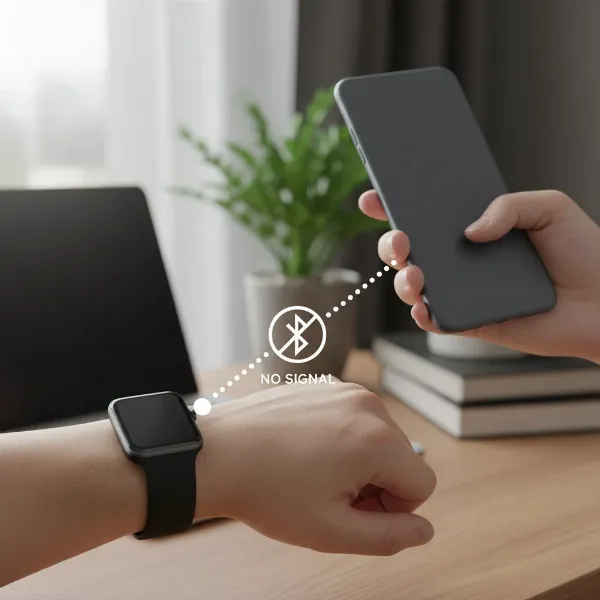 Smartwatch and phone with a broken Bluetooth connection icon, signifying notification issues.
Incorrect Notification Permissions
Even with a perfect connection, your smartwatch won’t receive messages if the necessary permissions aren’t granted. Both your smartphone and the smartwatch’s companion app require specific access to read and forward notifications. Many users overlook these settings during initial setup or after software updates.
- Phone Notification Settings: Your phone must allow notifications for your messaging apps (e.g., Messages, WhatsApp, Telegram) and, critically, for the smartwatch’s companion app.
- Companion App Permissions: The smartwatch app needs permission to access your phone’s notifications. On Android, this often involves granting “Notification Access.” On iOS, “Share System Notifications” via Bluetooth settings and appropriate “Show Previews” settings are vital.
- Smartwatch Settings: Your watch itself might have settings that disable specific app notifications or put them on silent.
Outdated Software & Compatibility
Technology evolves quickly, and outdated software can lead to compatibility issues between your devices. A smartwatch running old firmware, a phone with an ancient operating system, or an out-of-date companion app can all cause communication breakdowns. Software updates often include crucial bug fixes that address notification issues.
- Smartwatch Firmware: The operating system on your watch needs to be current to ensure seamless integration with your phone.
- Companion App: The app that links your phone and watch should always be the latest version from your app store.
- Phone Operating System: An outdated phone OS might not support the latest connectivity protocols or features required by your smartwatch and its applications.
Device Modes & Settings
Modern smartphones and smartwatches come with various modes designed to minimize distractions or conserve battery, but these can inadvertently block text notifications.
- Do Not Disturb (DND) Mode: If DND is active on your phone or watch, it will silence all notifications, including texts.
- Theater Mode/Sleep Mode: Similar to DND, these modes are designed to prevent screen illumination and vibrations, effectively pausing notifications.
- Battery Saver Mode: Aggressive battery-saving features on your phone can restrict background app activity, which prevents the smartwatch companion app from running and relaying notifications.
- Message Content Restrictions: Some settings, particularly on iOS, might prevent message content previews from being shown on locked screens or paired devices, thus blocking them from appearing on your watch.
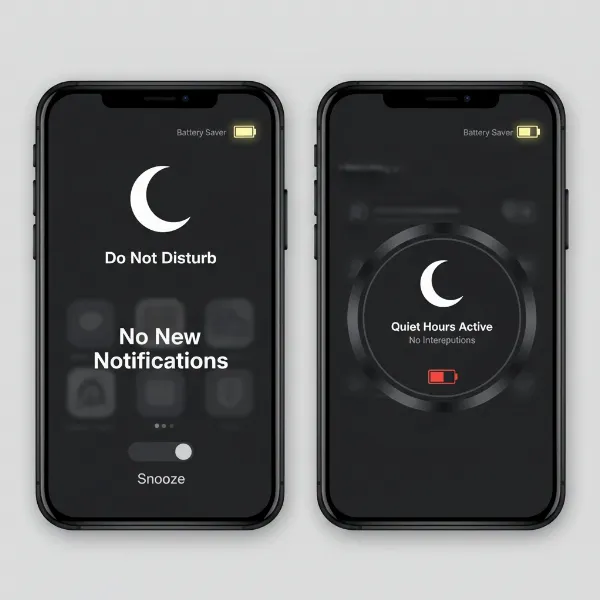 Smartphone and smartwatch screens showing Do Not Disturb and battery saver icons.
Third-Party App Conflicts
While native messaging apps usually integrate well, third-party messaging applications or custom versions (like WhatsApp Plus) can sometimes conflict with smartwatch notification protocols. These apps might have their own specific notification settings that need to be adjusted or might simply not be fully compatible with smartwatch notification forwarding.
Step-by-Step Troubleshooting Guide
Now that we understand the potential culprits, let’s walk through a systematic approach to get your smartwatch receiving texts again.
1. Verify Connectivity (Bluetooth, Wi-Fi/LTE)
The first step is always to check the foundation of the connection.
- Toggle Bluetooth: On your smartphone, turn Bluetooth off for 10-15 seconds, then turn it back on. Do the same on your smartwatch if the option is available.
- Check Range: Ensure your phone and smartwatch are within Bluetooth range, typically under 30 feet (10 meters). Walls and other obstructions can weaken the signal.
- Restart Devices: A simple restart of both your phone and smartwatch can often clear temporary software glitches and refresh all connections.
- Re-Pair (If Necessary): If the connection remains unstable, go to your phone’s Bluetooth settings, “forget” or “unpair” your smartwatch, and then re-pair it as if it were a new device. This creates a fresh connection.
- Cellular/Wi-Fi: If your smartwatch uses its own cellular or Wi-Fi connection for texts, verify that these connections are active and stable.
2. Check Notification Settings (Phone & Smartwatch)
Even if connected, your devices need explicit permission to push texts to your wrist.
- Smartphone Notification Settings:
- For Android: Go to
Settings > Apps & notifications > Notifications. Ensure notifications are enabled for your primary messaging app (e.g., Messages, Google Messages) and, crucially, for your smartwatch’s companion app (e.g., Wear OS, Samsung Wearable, Fitbit app). You may also need to grant “Notification Access” to the companion app underSettings > Security(or similar, depending on your phone model). - For iOS: Go to
Settings > Notifications. Scroll down to your messaging apps (e.g., Messages, WhatsApp) and ensure “Allow Notifications” is toggled on, and “Show Previews” is set to “Always” or “When Unlocked.” For your Apple Watch, within the Watch app on your iPhone, check “Notifications” for the Messages app. Also, inSettings > Bluetooth, tap theiicon next to your watch and ensure “Share System Notifications” is enabled.
- For Android: Go to
- Smartwatch Notification Settings: Open the companion app on your phone and navigate to the watch’s notification settings. Make sure text messages and any other desired messaging apps are explicitly enabled. Some watches also allow you to manage these settings directly on the device itself.
3. Update Software (Phone, Smartwatch, Companion App)
Outdated software is a common culprit.
- Companion App: Open your phone’s app store (Google Play Store or Apple App Store) and check for updates for your smartwatch’s companion app. Install any available updates.
- Smartwatch Firmware: On your smartwatch, go to
Settings > System > About > System Updates(or a similar path) to check for and install any available firmware updates. - Phone Operating System: Ensure your phone’s operating system is also up-to-date by checking
Settings > System > System update(Android) orSettings > General > Software Update(iOS).
4. Review Do Not Disturb & Battery Saver Modes
These modes are often the simplest fix.
- Do Not Disturb: Check both your phone and smartwatch to ensure Do Not Disturb (or similar modes like Focus on iOS) is not active. If it is, disable it.
- Theater Mode/Sleep Mode: Verify that your smartwatch isn’t in a mode like Theater Mode or Sleep Mode, which can suppress notifications.
- Battery Saver: Temporarily disable any battery saver or power-saving modes on your smartphone. These modes can aggressively limit background app activity, preventing your smartwatch app from functioning correctly.
5. Re-Pair Your Devices
If all else fails, a full reset of the connection can work wonders.
- Unpair Smartwatch: On your phone, open the smartwatch companion app and find the option to unpair or disconnect your watch. Confirm the action.
- Factory Reset Smartwatch (Optional): In some persistent cases, you might need to factory reset your smartwatch. This should be a last resort as it will wipe all data and settings from your watch.
- Re-Pair: Follow the initial setup instructions to re-pair your smartwatch with your phone. This process often resolves deep-seated connectivity and notification issues.
When to Seek Professional Help
If you’ve meticulously followed all these steps and your smartwatch is still stubbornly refusing to receive texts, it might be time to consider professional assistance. This could involve:
- Manufacturer Support: Contacting the support team for your smartwatch brand. They might have device-specific troubleshooting or be able to diagnose hardware faults.
- Phone Carrier: If you have a cellular smartwatch, your phone carrier might need to check your service plan and activation.
- Repair Shop: A certified electronics repair technician can assess for hardware damage that might be preventing proper communication.
“Many users assume their smartwatch is broken when texts stop coming through, but often, it’s a simple setting or a missed update. The key is to systematically check every potential point of failure, from Bluetooth to app permissions.” – Alex Chen, Smartwatch Technical Specialist
Conclusion
A smartwatch that isn’t receiving texts can feel like a disconnected piece of tech on your wrist. However, with a methodical approach to troubleshooting, most notification issues can be resolved. By ensuring robust connectivity, correct notification permissions, up-to-date software, and appropriate device settings, you can restore your smartwatch’s ability to keep you informed. Remember to be patient and work through each step, and you’ll likely find your texts popping up on your wrist again in no time, bringing back the convenience and utility you expect from your device.
What was the most challenging smartwatch notification issue you’ve ever faced, and how did you finally solve it?
Frequently Asked Questions
Why are my text messages not showing up on my Apple Watch?
For Apple Watch, ensure “Share System Notifications” is enabled in your iPhone’s Bluetooth settings for your watch, and that “Show Previews” is set to “Always” or “When Unlocked” for the Messages app in your iPhone’s main Notification settings. Also, check the Apple Watch app’s specific notification settings for Messages.
My Android smartwatch isn’t getting texts, what’s the first thing I should check?
The very first thing to check on an Android smartwatch is the Bluetooth connection between your phone and watch. Ensure Bluetooth is on, both devices are paired, and within range. Next, verify that the companion app has “Notification Access” granted in your phone’s security settings.
Can Do Not Disturb mode on my phone stop smartwatch texts?
Yes, absolutely. If Do Not Disturb (or a similar Focus/Quiet mode) is active on your smartphone, it will typically prevent all notifications, including text messages, from being pushed to your paired smartwatch. Always check and disable DND on both devices if you’re missing alerts.