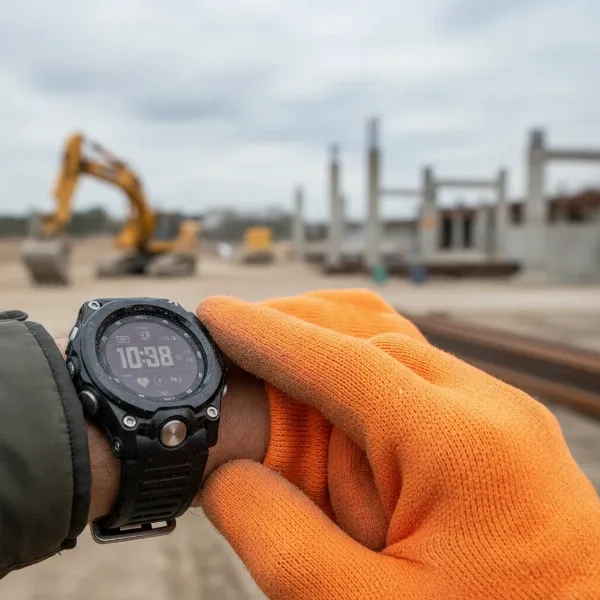
Have you ever struggled to get everyone in a group photo, or wished you could capture that perfect selfie without fumbling with your phone? Modern smartwatches offer a brilliant solution, transforming your wrist into a powerful remote control for your smartphone camera. This guide will walk you through everything you need to know to leverage your smartwatch for effortless, hands-free photography and videography.
Using your smartwatch as a camera remote shutter opens up a world of creative possibilities, allowing you to capture moments with unparalleled ease and precision. From setting up complex group shots to discreetly recording videos, your smartwatch empowers you to step out from behind the lens and truly be present in every frame.
The Power of Your Wrist: Why Use a Smartwatch as a Camera Remote
Embracing your smartwatch for camera control goes beyond mere convenience; it revolutionizes how you interact with your phone’s camera, making photography more accessible and enjoyable.
Hands-Free Freedom
|
Our Picks for the Best Smartwatch in 2026
As an Amazon Associate I earn from qualifying purchases.
|
||
| Num | Product | Action |
|---|---|---|
| 1 | Apple Watch Series 11 [GPS 42mm] Smartwatch with Rose Gold Aluminum Case with Light Blush Sport Band - S/M. Sleep Score, Fitness Tracker, Health Monitoring, Always-On Display, Water Resistant |
![Check Apple Watch Series 11 [GPS 42mm] Smartwatch with Rose Gold Aluminum Case with Light Blush Sport Band - S/M. Sleep Score, Fitness Tracker, Health Monitoring, Always-On Display, Water Resistant on Amazon](https://smartwatchus.com/wp-content/plugins/amazon-tables/assets/images/buy.png)
|
| 2 | Smart Watch for Men, 120 Sports Modes Smartwatch with 1.83" HD Touchsreen, IP67 Waterproof, Sleep Monitor, Bluetooth Call & Music Control Fitness Watch for Android/iPhone (Black) |
|
| 3 | WHOOP 5.0/MG Activity Tracker - 12 Month Membership - Health and Fitness Wearable – 24/7 Activity and Sleep Tracker, Personalized Coaching, Menstrual Cycle Insights – 14+ Days Battery Life |
|
| 4 | SAMSUNG Galaxy Watch 7 40mm Bluetooth AI Smartwatch w/Energy Score, Wellness Tips, Heart Rate Tracking, Sleep Monitor, Fitness Tracker, 2024, Cream [US Version, 1Yr Manufacturer Warranty] |
|
| 5 | Smart Watch for Men Women Compatible with iPhone Samsung Android Phone 1.83 inch Full Touch Screen IP68 Waterproof Bluetooh Fitness Tracker Heart Rate/Sleep Monitor, Black |
|
| 6 | Smart Watch, 2026 AMOLED 1.43" Fitness Smartwatch for Men Women, Bluetooth 5.4 Call, 130+Sports Modes, 60+Days Flashlight, Heart Rate/Sleep Monitor, IP68 Waterproof Activity Tracker for Android iOS |
|
| 7 | Amazfit Bip 6 Smart Watch 46mm, 14 Day Battery, 1.97" AMOLED Display, GPS & Free Maps, AI, Bluetooth Call & Text, Health, Fitness & Sleep Tracker, 140+ Workout Modes, 5 ATM Water-Resistance, Black |
|
| 8 | Smart Watch for Men, 120+ Sports Modes Smartwatch with 1.83" HD Touchsreen, Sleep Monitor, IP67 Waterproof, Bluetooth Call & Music Control Fitness Watch for iPhone/Android Black |
|
| 9 | Apple Watch Series 11 [GPS 46mm] Smartwatch with Jet Black Aluminum Case with Sport Band - M/L. Sleep Score, Fitness Tracker, Health Monitoring, Always-On Display, Water Resistant |
|
| 10 | Smart Watch with Alexa Built-in, 1.83" HD Touchscreen Fitness Tracker with Bluetooth Calling, Fitness Watch with Heart Rate/Sleep Monitor, 120+ Sports Modes, IP68 Waterproof Smartwatch for Android iOS |
|
One of the most significant advantages is the ability to trigger your camera remotely, freeing your hands from holding the phone. This is invaluable for stabilizing your device on a tripod or finding unique angles that would otherwise be difficult to achieve. It also means no more awkward arm stretches for selfies.
Perfect Group Shots & Selfies
No one has to be left out of the picture anymore. With a smartwatch remote, you can perfectly frame group photos and then join your friends and family, pressing the shutter from your wrist. Selfies become a breeze, allowing you to adjust your pose and expression without constantly checking the phone.
Stable Photography
Pressing the shutter button directly on your phone can sometimes introduce camera shake, especially in low-light conditions or when trying to hold the phone at an unusual angle. A smartwatch remote eliminates this direct contact, ensuring sharper, more stable images.
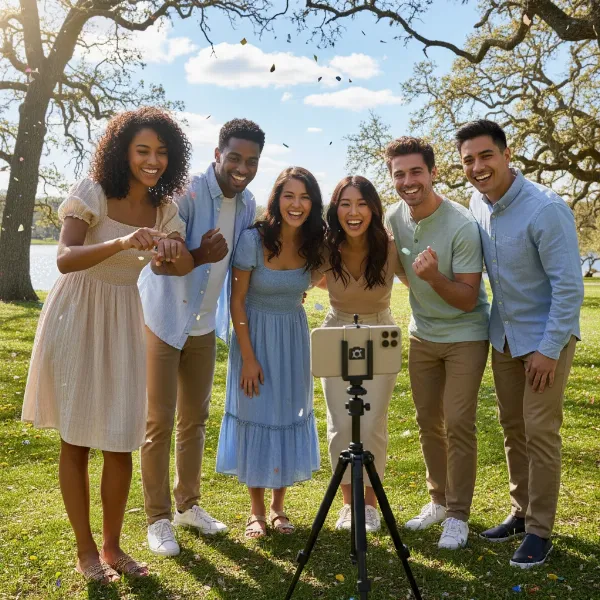 Group of friends smiling for a photo, taken with a smartwatch camera remote.
Creative Angles & Discreet Captures
Imagine setting your phone on the ground for a low-angle shot, or placing it high up to get a unique perspective. Your smartwatch lets you compose and capture these shots from a distance. For content creators, it allows for discreet video recording or photography without needing to constantly be near the main camera setup.
Getting Started: Universal Steps to Connect Your Smartwatch Camera Remote
While specific steps may vary slightly between brands, the general process for using your smartwatch as a camera remote shutter is straightforward and consistent across most platforms.
Ensure Compatibility & Connection
First, make sure your smartwatch is properly paired and connected to your smartphone via Bluetooth. This is the foundational step for any remote functionality. For optimal performance, ensure both devices are within normal Bluetooth range, typically about 33 feet (10 meters).
Launch the Camera Remote App
On your smartwatch, open the dedicated camera remote application. This might be a pre-installed app like “Camera Remote” on Apple Watch or “Camera Controller” on Samsung Galaxy Watch. For Wear OS devices, there’s often a native camera control feature. If your smartwatch doesn’t have a built-in option, or if you’re using a generic device, you might need to download a third-party app on both your phone and watch. Opening this app on your watch will typically launch the camera application on your phone automatically.
Take Your Shot
Once the camera app is active and you’ve framed your shot using your phone (or your watch’s viewfinder, if available), simply tap the shutter button on your smartwatch screen to capture the photo or start/stop video recording. Many apps also offer additional controls like a timer, allowing you a few seconds to adjust before the picture is taken.
Brand-Specific Guides: Unleashing Your Smartwatch’s Camera Potential
Different smartwatch ecosystems offer varying levels of integration and features for remote camera control. Here’s a closer look at popular brands:
Apple Watch: Seamless iPhone Integration
Apple Watch users benefit from deep integration with the iPhone’s camera through the built-in Camera Remote app.
- How it works: Simply open the Camera Remote app on your Apple Watch. This immediately activates the camera on your paired iPhone and presents a live preview, turning your watch into a miniature viewfinder.
- Key Features: You can tap the shutter button to take a photo, which often defaults to a 3-second timer. For more control, turn the Digital Crown to zoom in or out, and tap on the preview image to adjust exposure and focus. The app also allows you to switch between front and rear cameras, toggle flash, and control video recording.
- Range: Your Apple Watch needs to be within standard Bluetooth range of your iPhone (approximately 10 meters or 33 feet) to function effectively.
Samsung Galaxy Watch & Wear OS: Android Harmony
Samsung Galaxy Watch and other Wear OS devices offer robust camera control features, often with live viewfinders.
- Built-in features: Samsung Galaxy Watch users can utilize the Camera Controller app. This app provides a live viewfinder, allowing you to control the shutter, record videos, and adjust zoom and focus directly from your wrist. It’s designed for seamless integration with Samsung smartphones.
- Wear OS: Many Wear OS smartwatches come with a native Camera Remote feature that mirrors your phone’s camera feed and offers basic shutter control.
- Third-Party App Considerations: For users with non-Samsung Android phones or generic smartwatches, third-party apps like “Camera Remote Watch” or “Camera One” (available on Google Play Store) can provide similar functionalities, including live previews, burst shots, and video recording. Some apps might have limitations regarding access to all phone camera lenses or might require their own companion app to be running on the phone.
Other Smartwatches: Exploring Third-Party Options
For smartwatches outside the Apple, Samsung, or Wear OS ecosystems (e.g., many budget or fitness-focused smartwatches), remote camera control is typically achieved through their respective companion apps.
- General Functionality: These often include a “Remote Take Photos” or similar function within the watch’s app list. When activated, it usually triggers the camera on the paired smartphone.
- App Recommendations: Look for well-reviewed third-party apps that explicitly state compatibility with your specific smartwatch model and phone operating system (Android or iOS). These apps might offer features like live previews, burst mode, and basic camera settings adjustments.
Beyond the Basics: Advanced Features & Tips for Smartwatch Camera Control
Mastering these features will elevate your smartwatch photography experience.
Live Viewfinder & Framing
Many advanced smartwatch camera apps offer a live viewfinder, displaying what your phone’s camera sees directly on your watch screen. This is a game-changer for precise framing, especially when your phone is placed in an unusual position or when you’re taking hands-free selfies. Always utilize this feature when available to compose your shots perfectly.
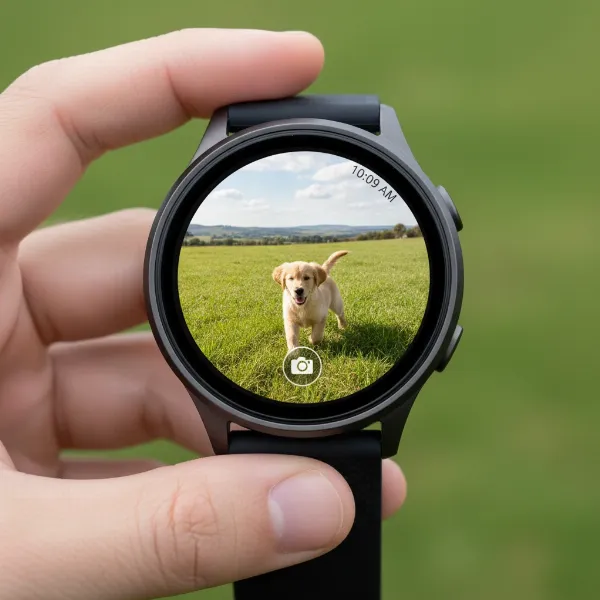 Smartwatch screen displaying a live camera feed from a connected smartphone.
Timers & Burst Mode
For group shots or when you need a moment to get into position, the timer function is indispensable. Most native and third-party apps allow you to set a delay (e.g., 3 or 10 seconds) before the shutter fires. Some apps also support burst mode, capturing a rapid sequence of photos, increasing your chances of getting that ideal shot.
Video Recording
It’s not just for photos! Many smartwatches can also remotely start and stop video recording on your smartphone. This is incredibly useful for capturing tutorials, vlogs, fitness videos, or any moment where you need to film yourself without constantly reaching for your phone.
Zoom & Focus Adjustments
High-end smartwatches like the Apple Watch allow you to zoom in and out using the Digital Crown and even tap to adjust focus and exposure directly from your wrist. These granular controls give you more creative command over your final image.
Troubleshooting Common Issues
If your smartwatch camera remote isn’t working, don’t fret. Here are some quick fixes:
- Check Bluetooth: Ensure both devices are connected and within range.
- Disable Power-Saving Modes: Sometimes, power-saving settings on either device can restrict background app functionality.
- Update Software: Make sure your smartwatch and smartphone operating systems, as well as the camera remote app, are all up to date.
- Restart Devices: A simple restart of both your phone and watch can often resolve connectivity glitches.
- Try Another App: If native options fail, explore a reputable third-party camera remote app.
Choosing the Right Smartwatch for Camera Control
When considering a smartwatch primarily for its camera remote capabilities, think about your existing smartphone ecosystem. Apple Watch offers the most seamless and feature-rich experience for iPhone users. For Android users, Samsung Galaxy Watch provides excellent native integration, while Wear OS offers good standard functionality. If you frequently need advanced controls like a live viewfinder, zoom, and video recording, prioritize watches with robust built-in apps or strong third-party app support.
“The ability to control your phone’s camera from your wrist transforms casual snapshots into deliberate, well-composed photographs. It’s about empowering the user to be both the photographer and the subject.” – John Smith, Smartwatch Technology Expert
Conclusion
Using your smartwatch as a camera remote shutter is a practical, fun, and incredibly useful feature that enhances your photography experience. It provides unparalleled convenience for capturing everything from personal selfies to memorable group photos, offering stability, creative freedom, and the ability to step away from your phone. With native apps for Apple Watch, Samsung Galaxy Watch, and Wear OS, alongside a host of third-party options, it’s easier than ever to take control of your smartphone’s camera directly from your wrist.
Have you explored the full potential of your smartwatch as a camera remote? Share your best hands-free photography tips!
Frequently Asked Questions
How do I use my smartwatch as a camera shutter?
To use your smartwatch as a camera shutter, ensure it’s paired with your phone via Bluetooth. Open the camera remote app on your watch, which will typically launch your phone’s camera. Then, tap the shutter icon on your smartwatch screen to take a photo or start/stop recording. Many apps also feature a timer for convenience.
Can I see the camera view on my smartwatch?
Yes, many smartwatches and their dedicated camera remote apps offer a live viewfinder feature. This allows you to see exactly what your phone’s camera sees directly on your smartwatch screen, making it much easier to frame your shots accurately, especially for selfies or when your phone is placed at a distance.
Which smartwatches offer the best camera remote features?
Apple Watch provides excellent native integration and features for iPhone users through its “Camera Remote” app. Samsung Galaxy Watch offers strong functionality with its “Camera Controller” app for Samsung phones. Wear OS watches also have good native support. For broader compatibility, third-party apps like “Camera Remote Watch” or “Camera One” are popular options.
What should I do if my smartwatch camera remote isn’t working?
First, check that your smartwatch is securely connected to your phone via Bluetooth and both devices are within range. Ensure all apps and software are updated. Disabling power-saving modes on your phone might also help. If issues persist, try restarting both devices or exploring a different third-party camera remote application.