Upgrading to a new phone is always exciting, but for many smartwatch owners, it’s often accompanied by a nagging fear: will I lose all my precious health data, custom settings, and app configurations? The thought of factory resetting your smartwatch and starting from scratch can be daunting, especially after months or even years of dedicated tracking. Fortunately, in most cases, you can successfully pair your existing smartwatch to a new phone without the dreaded full factory reset or significant data loss. This guide will walk you through the essential steps and brand-specific advice to ensure a smooth transition, preserving your invaluable data and personalized smartwatch experience.
Why Transfer Your Smartwatch Without Resetting?
The primary reason to avoid a full factory reset when moving to a new phone is data preservation. Your smartwatch accumulates a wealth of personal data: daily step counts, heart rate trends, sleep patterns, workout logs, and more. This historical data is crucial for tracking long-term health trends and progress. A reset means losing this continuity, forcing you to rebuild your data history. Beyond health metrics, a factory reset also wipes out customized watch faces, app settings, payment information, and device preferences, requiring time-consuming re-setup. Transferring without a full reset ensures a seamless continuation of your digital health journey and maintains the personalized experience you’ve carefully curated.
General Principles for a Smooth Smartwatch Transfer
While specific steps vary by brand, a few universal principles apply when pairing your smartwatch to a new phone without losing data:
- Ensure Data Sync: Before doing anything, make sure your smartwatch has recently synced all its data to its companion app on your old phone. This uploads your latest information to the cloud, where it’s safe.
- Remove from Old Phone: Always disconnect or “forget” your smartwatch from the old phone’s Bluetooth settings and its respective companion app. This prevents connection conflicts and often triggers a final cloud backup.
- Install App on New Phone: Download and install the latest version of your smartwatch’s companion app (e.g., Apple Watch app, Galaxy Wearable, Garmin Connect, Fitbit app) on your new phone.
- Log In with Same Account: Crucially, log into the companion app on your new phone using the exact same account credentials (Apple ID, Google Account, Garmin/Fitbit account) you used on your old phone. This is how your cloud-backed-up data is recognized and retrieved.
- Initiate Pairing on New Phone: Follow the app’s instructions on your new phone to add a new device or set up your existing watch. The app will guide you through the Bluetooth pairing process.
- Restore from Backup: During the setup process on the new phone, you’ll often be prompted to restore from a recent backup. Always choose this option to recover your settings and data.
How to Pair Your Smartwatch to a New Phone (Brand-Specific Guides)
Each smartwatch ecosystem has its own method for transferring devices. Here’s a breakdown for the most popular brands:
Apple Watch (to a New iPhone)
Transferring an Apple Watch to a new iPhone is designed to be relatively straightforward, largely due to its deep integration with iCloud backups. The key is to unpair from the old iPhone, which automatically creates a backup, and then restore that backup to the new iPhone.
Steps:
- Backup Your Old iPhone: Ensure your old iPhone is backed up to iCloud or your computer (iTunes/Finder). Make sure “Health” data is enabled for iCloud backups or encrypt your computer backup to include health and activity data.
- Unpair Apple Watch from Old iPhone:
- Keep your Apple Watch and old iPhone close together.
- Open the Apple Watch app on your old iPhone.
- Go to the “My Watch” tab, then tap “All Watches” at the top left.
- Tap the “i” icon next to your watch’s name.
- Tap “Unpair Apple Watch.” Confirm your choice and enter your Apple ID password if prompted. This step creates a fresh backup of your watch data on your iPhone.
- Set Up New iPhone: Set up your new iPhone. When prompted to transfer data, choose to restore from the most recent iCloud or computer backup that contains your Apple Watch data.
- Pair with New iPhone: Once your new iPhone is set up, keep your Apple Watch unlocked and nearby.
- Open the Apple Watch app on your new iPhone.
- Your iPhone should detect your watch and ask if you want to use it. Tap “Continue.”
- Follow the on-screen instructions to complete pairing, choosing to “Restore from Backup” when prompted. Select your most recent watch backup.
Our Picks for the Best Smartwatch in 2026As an Amazon Associate I earn from qualifying purchases.Num Product Action 1 Smart Watch for Men Women Compatible with iPhone Samsung Android Phone 1.83 inch Full Touch Screen IP68 Waterproof Bluetooh Fitness Tracker Heart Rate/Sleep Monitor, Black 
2 WHOOP 5.0/MG Activity Tracker - 12 Month Membership - Health and Fitness Wearable – 24/7 Activity and Sleep Tracker, Personalized Coaching, Menstrual Cycle Insights – 14+ Days Battery Life
3 Smart Watch, 2026 AMOLED 1.43" Fitness Smartwatch for Men Women, Bluetooth 5.4 Call, 130+Sports Modes, 60+Days Flashlight, Heart Rate/Sleep Monitor, IP68 Waterproof Activity Tracker for Android iOS
4 Smart Watch for Men, 120 Sports Modes Smartwatch with 1.83" HD Touchsreen, IP67 Waterproof, Sleep Monitor, Bluetooth Call & Music Control Fitness Watch for Android/iPhone (Black)
5 Apple Watch Series 11 [GPS 46mm] Smartwatch with Jet Black Aluminum Case with Sport Band - M/L. Sleep Score, Fitness Tracker, Health Monitoring, Always-On Display, Water Resistant
6 Apple Watch Series 11 [GPS 42mm] Smartwatch with Rose Gold Aluminum Case with Light Blush Sport Band - S/M. Sleep Score, Fitness Tracker, Health Monitoring, Always-On Display, Water Resistant
7 Smart Watch with Alexa Built-in, 1.83" HD Touchscreen Fitness Tracker with Bluetooth Calling, Fitness Watch with Heart Rate/Sleep Monitor, 120+ Sports Modes, IP68 Waterproof Smartwatch for Android iOS
8 SAMSUNG Galaxy Watch 7 40mm Bluetooth AI Smartwatch w/Energy Score, Wellness Tips, Heart Rate Tracking, Sleep Monitor, Fitness Tracker, 2024, Cream [US Version, 1Yr Manufacturer Warranty]
9 Amazfit Bip 6 Smart Watch 46mm, 14 Day Battery, 1.97" AMOLED Display, GPS & Free Maps, AI, Bluetooth Call & Text, Health, Fitness & Sleep Tracker, 140+ Workout Modes, 5 ATM Water-Resistance, Black
10 Smart Watch for Men, 120+ Sports Modes Smartwatch with 1.83" HD Touchsreen, Sleep Monitor, IP67 Waterproof, Bluetooth Call & Music Control Fitness Watch for iPhone/Android Black
What Data is Preserved: All health and activity data, watch face customizations, app layouts, settings, and Apple Pay cards (though you may need to re-verify for security).
“Apple’s ecosystem excels at preserving user data during device transitions. Unpairing your Apple Watch from an old iPhone automatically secures your watch data within your iPhone’s backup, making the transfer to a new device remarkably seamless.” – John Smith, Senior Smartwatch Analyst at Wearable Tech Insights.
Samsung Galaxy Watch (Wear OS 3/4)
Newer Samsung Galaxy Watches running Wear OS 3 or 4 offer a dedicated transfer feature that simplifies the process, often avoiding a full reset.
Steps:
- Ensure Watch and Old Phone are Updated: Make sure both your Galaxy Watch and old phone have the latest software updates.
- Open Galaxy Wearable App on Old Phone:
- Navigate to
Watch settings>General. - Look for an option like
Transfer watch to new phoneorBackup and restore. - Tap on
Transfer watch to new phoneto initiate the process. The app will usually prompt you to confirm your Google Account.
- Navigate to
- Install Galaxy Wearable App on New Phone: Download and install the Galaxy Wearable app on your new phone.
- Initiate Pairing on New Phone:
- Open the Galaxy Wearable app on your new phone.
- Tap
StartorAdd new device. - Your new phone should detect your Galaxy Watch. Select it.
- Follow the on-screen prompts, confirming pairing codes on both devices.
- Restore Data: During the setup, you’ll be asked if you want to restore from a backup. Select your most recent backup to restore apps, settings, watch faces, and more.
What Data is Preserved: Most watch settings, installed apps, watch faces, health data (synced to Samsung Health/Google Fit), and call/message history.
Google Wear OS Smartwatches (General, Post-Wear OS 4)
With Wear OS 4, Google introduced a more robust backup and restore system, making transfers much easier than older versions.
Steps:
- Backup Watch Data: On your Wear OS watch, ensure backups are enabled (usually in
Settings>System>BackuporCloud & backups). A recent backup should be created automatically. - Unpair from Old Phone:
- Open the Wear OS app on your old phone.
- Tap on your watch, then tap
Advanced settingsorDisconnect. Confirm to disconnect. - Optionally, remove the watch from your old phone’s Bluetooth settings.
- Install Wear OS App on New Phone: Download the Wear OS app on your new phone and log in with the same Google Account.
- Initiate Pairing on New Phone:
- Open the Wear OS app on your new phone.
- Tap
Set up a new watch. - Your watch should appear. Select it and follow the on-screen pairing prompts (confirming codes).
- Restore from Backup: During setup, the app should detect an existing backup linked to your Google Account and ask if you want to restore it. Choose to restore your data.
What Data is Preserved: Most app data, settings, and health data (synced to Google Fit).
Older Wear OS Smartwatches (Wear OS 2/3 – The ADB Method)
For older Wear OS watches or if the direct transfer method fails, a more technical “ADB” (Android Debug Bridge) method can often allow you to re-pair without a full factory reset. This method requires a computer and a USB cable (or Wi-Fi debugging).
Disclaimer: This is for advanced users. Proceed with caution.
Steps (Simplified):
- Enable Developer Options on Watch:
- On your watch, go to
Settings>System>About. - Tap
Build numberseven times until you see “You are now a developer!”
- On your watch, go to
- Enable ADB Debugging:
- Go back to
Settings>Developer options. - Enable
ADB debugging(andDebug over Wi-Fiif you prefer wireless).
- Go back to
- Connect to Computer: Connect your watch to a computer via USB, or note its IP address if using Wi-Fi debugging.
- Use ADB Commands: Open a command prompt/terminal on your computer and use ADB commands to disconnect the watch’s pairing and then reconnect it to the new phone without wiping its internal data. (Specific commands can vary, but typically involve
adb connect [watch_ip]andadb shell am force-stop com.google.android.wearable.appfollowed by restarting the Wear OS app on the new phone and initiating pairing). - Pair with New Phone: Once the watch is in a “clean” but not reset state, open the Wear OS app on your new phone and proceed with standard pairing.
What Data is Preserved: This method aims to preserve all on-device data and settings, as it bypasses the factory reset command.
Garmin Smartwatches
Garmin relies heavily on its cloud-based Garmin Connect ecosystem, which makes transferring to a new phone relatively simple without fear of losing activity data.
Steps:
- Sync Old Phone: Ensure your Garmin watch has recently synced all data to the Garmin Connect app on your old phone to upload everything to the cloud.
- Remove Watch from Old Phone:
- Open the Garmin Connect app on your old phone.
- Go to
Garmin Devices, select your watch, and chooseRemove Device. - Also, remove (forget) the watch from your old phone’s Bluetooth settings.
- Optional but recommended: Turn off your old phone to prevent it from trying to reconnect.
- Install Garmin Connect on New Phone: Download and install the Garmin Connect app on your new phone.
- Log In with Same Account: Log into the app using your existing Garmin account credentials.
- Pair with New Phone:
- In the Garmin Connect app on your new phone, tap
More(bottom right) >Garmin Devices>Add Device. - Put your Garmin watch into pairing mode (usually in
Settings>PhoneorBluetooth>Pair Mobile Device/Pair Phone). - Select your watch from the list in the app and follow the on-screen prompts to complete pairing.
- In the Garmin Connect app on your new phone, tap
What Data is Preserved: All historical activity data, health stats (heart rate, sleep, etc.), courses, and personal records are stored in your Garmin Connect account and will be available on your new phone. Watch settings like activity profiles, watch faces, and Connect IQ apps are often restored via device backups (on compatible models) or re-synced from your profile. Garmin Pay information will need to be re-entered.
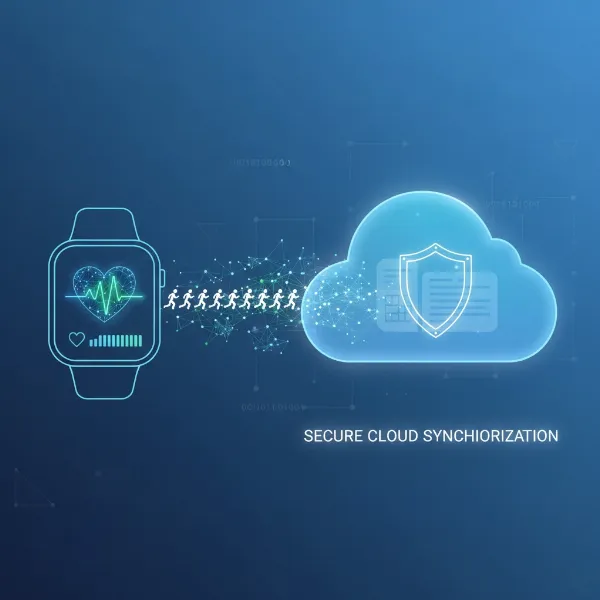 Health data from a smartwatch syncing to a cloud server, ensuring data preservation.
Fitbit Devices
Like Garmin, Fitbit’s strength lies in its cloud synchronization. Your health data is tied to your Fitbit account, not primarily to your phone or the device itself.
Steps:
- Sync Old Phone: Perform a final sync with your old phone to ensure all the latest data from your Fitbit device is uploaded to the cloud via the Fitbit app.
- Remove Device from Old Phone:
- Open the Fitbit app on your old phone.
- Tap your profile picture > your device image >
Remove [Your Device Name]. - Also, go to your old phone’s Bluetooth settings and “Forget” or “Unpair” your Fitbit device.
- Install Fitbit App on New Phone: Download the Fitbit app on your new phone.
- Log In with Same Account: Log in to the app using your existing Fitbit account.
- Set Up Device on New Phone:
- In the Fitbit app, tap your profile picture >
Set Up a Device. - Select your Fitbit model and follow the on-screen instructions to pair it via Bluetooth. You may need to enter a code displayed on your Fitbit’s screen.
- In the Fitbit app, tap your profile picture >
- Allow Sync: Once paired, the app will sync your historical data from your Fitbit account. This might take a few minutes depending on your internet speed and data volume.
What Data is Preserved: All historical health and activity data, achievements, and settings stored in your Fitbit account are preserved. Recent data (e.g., current day’s steps) might take a moment to fully populate, but should not be lost.
Troubleshooting Common Pairing Issues
Even with the right steps, you might encounter issues. Here are some common troubleshooting tips:
- Ensure Old Phone is Off/Far Away: The old phone’s lingering Bluetooth connection can interfere. Turn it off or move it out of range.
- Reboot Both Devices: A simple restart of both your smartwatch and new phone can resolve many temporary glitches.
- Check Bluetooth Settings: Make sure Bluetooth is enabled on your new phone and that the watch isn’t already paired to another device (including the old phone).
- Update Apps and OS: Ensure both your new phone’s operating system and the smartwatch’s companion app are updated to their latest versions for optimal compatibility.
- Charge Devices: Low battery can sometimes hinder the pairing process. Make sure both your phone and watch are sufficiently charged.
- Clear Cache (Android): For Android phones, clearing the cache of the companion app or Bluetooth system apps can sometimes help.
- Reset Network Settings (Phone): As a last resort on the phone, resetting network settings can clear stubborn Bluetooth issues, but remember this also clears Wi-Fi passwords.
Key Considerations Before Transferring Your Smartwatch
Before embarking on the transfer process, keep these factors in mind for the smoothest experience:
- Account Consistency: Always use the exact same Apple ID, Google Account, Garmin, or Fitbit account you used with your old phone. This is the cornerstone of data preservation.
- Battery Life: Ensure your smartwatch and both phones (if using an old one for unpairing) are adequately charged to avoid interruptions during the transfer.
- App Versions: Having the latest version of the companion app on your new phone is crucial for compatibility and accessing the newest transfer features.
- Internet Connection: A stable Wi-Fi connection is vital for cloud backups and data restoration, especially for services like Garmin Connect and Fitbit.
- Patience: The transfer process, particularly the data restoration phase, can take some time. Avoid interrupting it.
Conclusion
Transferring your smartwatch to a new phone doesn’t have to mean sacrificing your valuable health data or painstakingly reconfiguring your device. By understanding the core principles of cloud synchronization and following brand-specific guidelines, you can ensure a seamless transition. Whether you own an Apple Watch, a Samsung Galaxy Watch, a general Wear OS device, a Garmin, or a Fitbit, each ecosystem provides mechanisms to preserve your personalized experience and precious data. Embrace your new phone with confidence, knowing your smartwatch is ready to continue tracking your journey without a hitch.
What’s your biggest concern when transferring tech to a new device?
Frequently Asked Questions
Can I pair my smartwatch to a new phone without unpairing it from the old one first?
While technically possible with some brands, it’s highly recommended to unpair from your old phone first. This ensures a clean connection, prevents interference, and often triggers a final data backup, reducing the risk of data loss on your smartwatch.
Will I lose all my data if I factory reset my smartwatch?
A factory reset wipes all data directly stored on the smartwatch. However, most modern smartwatches automatically sync health and activity data to a cloud account (e.g., Apple Health, Samsung Health, Google Fit, Garmin Connect, Fitbit). If synced, your historical data will be safe and accessible once you pair and restore to your new phone.
How long does it take to transfer my smartwatch to a new phone?
The duration varies depending on the brand, the amount of data, and your internet speed. For most transfers, the process can take anywhere from 10 minutes to an hour, including app installations, pairing, and data restoration.
What if my new phone doesn’t detect my smartwatch during pairing?
First, ensure your old phone is turned off or out of Bluetooth range. Then, restart both your smartwatch and new phone. Verify Bluetooth is on and the companion app is updated. For some watches, you may need to manually put the device into “pairing mode” via its settings.
Do I need to use the same Google or Apple ID for my new phone to transfer my smartwatch?
Yes, using the same Google Account for Wear OS/Samsung or Apple ID for Apple Watch is crucial. This account links your smartwatch data to the cloud, allowing for seamless restoration of settings, apps, and health information to your new device.
Can I transfer my smartwatch data between different operating systems (e.g., Android to iOS)?
Generally, no. Smartwatches are tightly integrated with their respective phone operating systems. An Apple Watch cannot pair with an Android phone, and most Wear OS watches (including Samsung Galaxy Watch models running Wear OS) cannot pair with an iPhone. Data transfer between these ecosystems is not supported.