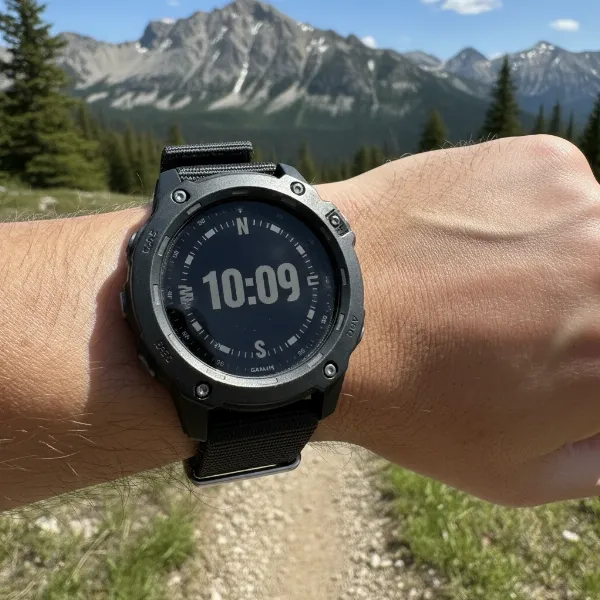
Smartwatches have become indispensable tools for tracking our daily activity, with step counting being a core feature for fitness enthusiasts and health-conscious individuals alike. However, many users often find their smartwatch’s step tracking to be inconsistent or inaccurate, leading to frustration and a skewed view of their progress. The good news is that with a few simple calibration steps and a better understanding of how these devices work, you can significantly enhance the accuracy of your smartwatch’s step tracking.
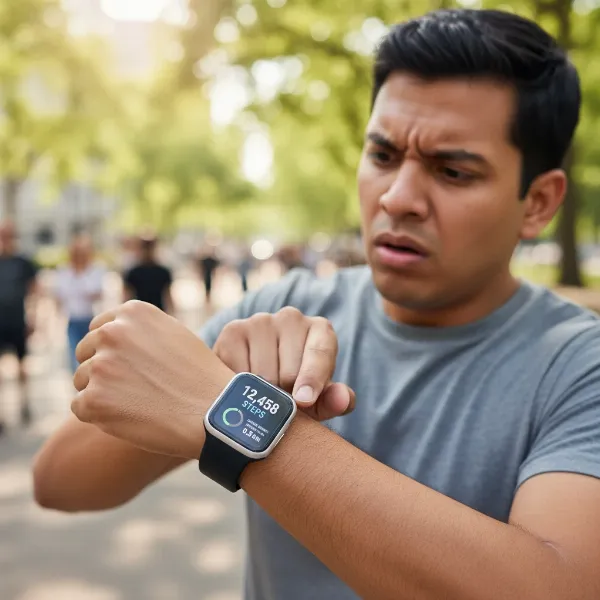 A smartwatch displaying an inaccurate step count, highlighting user frustration with inconsistent tracking.
Why Smartwatch Step Tracking Can Be Inaccurate
Before diving into calibration, it’s helpful to understand the factors that can influence your smartwatch’s step-counting accuracy:
- Personal Information: Your height, weight, gender, and age are crucial data points your watch uses to estimate stride length and calorie burn. Inaccurate personal settings can lead to miscalculations.
- Watch Fit: A loose-fitting watch can cause it to jiggle on your wrist, resulting in missed steps or false positives as arm movements are misinterpreted as steps.
- Software and Firmware: Outdated software or firmware can mean your watch isn’t benefiting from the latest algorithms designed to improve step detection and accuracy.
- GPS Signal: While smartwatches use internal accelerometers for step counting, GPS data from outdoor activities is vital for the device to learn your stride length and pace accurately, especially when GPS is limited or unavailable.
- Movement Patterns: Individual arm swing and walking/running styles can affect how consistently steps are registered.
- Power Saving Modes: Aggressive battery-saving settings can sometimes reduce sensor sampling rates, potentially causing the watch to miss shorter or faster step impulses.
General Calibration Principles for All Smartwatches
Regardless of your smartwatch brand, a few universal practices can lay the groundwork for more accurate step tracking:
- Update Personal Information: Ensure your exact height, weight, gender, and age are correctly entered in your smartwatch’s companion app. These details are fundamental for the watch’s algorithms to estimate your stride and calorie expenditure.
- Wear Your Watch Snugly: A firm but comfortable fit is essential. The watch should not slide around on your wrist, allowing its sensors to maintain consistent contact with your skin and accurately detect movement.
- Keep Software Updated: Regularly check for and install the latest firmware and software updates for both your smartwatch and its companion app. Manufacturers frequently release updates that include improvements to tracking algorithms.
- Embrace Outdoor Activities: Performing regular outdoor walks or runs with GPS enabled is crucial. This allows your smartwatch to “learn” your natural stride length at various speeds, significantly improving its accuracy for both indoor and outdoor activities.
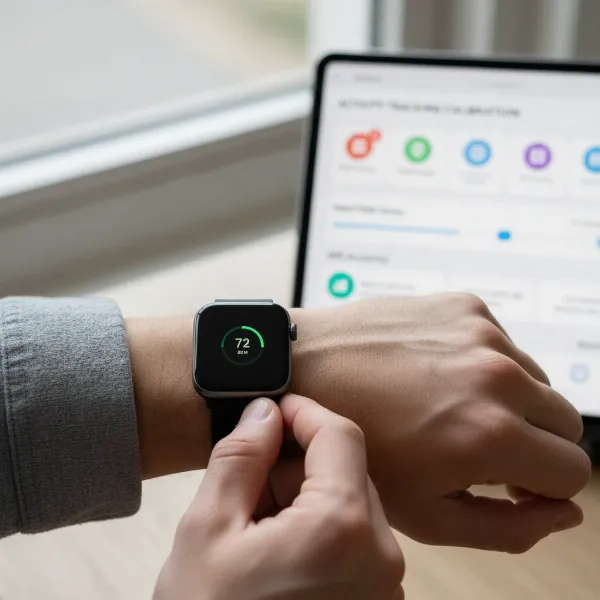 A person actively calibrating a smartwatch, ensuring snug fit and checking settings for improved accuracy.
Brand-Specific Calibration Guides
While general principles apply, specific steps vary by brand. Here’s how to calibrate some of the most popular smartwatches:
Apple Watch
Apple Watch calibration focuses on improving accuracy for distance, pace, and calorie measurements, which in turn refines step tracking.
- Check iPhone Settings:
- Open the Settings app on your iPhone.
- Navigate to Privacy & Security > Location Services. Ensure Location Services is turned on.
- Scroll down and tap System Services. Verify that Motion Calibration & Distance is turned on.
- Calibrate Your Apple Watch:
- Wear your Apple Watch and go to a flat, open outdoor area with good GPS reception and clear skies.
- Open the Workout app on your watch.
- Tap Outdoor Walk or Outdoor Run. You can set a goal before starting, if desired.
- Walk or run at your normal pace for approximately 20 minutes. If you can’t complete 20 minutes in one go, you can accumulate this time over multiple outdoor workout sessions. If your workout speeds vary, aim to calibrate for 20 minutes at each speed.
- During these outdoor sessions, your Apple Watch continues to calibrate its accelerometer by learning your stride length at different speeds.
- Reset Calibration Data (If Needed): If you continue to experience significant inaccuracies, you can reset your fitness calibration data:
- On your iPhone, open the Watch app.
- Tap the My Watch tab, then go to Privacy > Reset Fitness Calibration Data.
Our Picks for the Best Smartwatch in 2026As an Amazon Associate I earn from qualifying purchases.Num Product Action 1 SAMSUNG Galaxy Watch 7 40mm Bluetooth AI Smartwatch w/Energy Score, Wellness Tips, Heart Rate Tracking, Sleep Monitor, Fitness Tracker, 2024, Cream [US Version, 1Yr Manufacturer Warranty] ![Check SAMSUNG Galaxy Watch 7 40mm Bluetooth AI Smartwatch w/Energy Score, Wellness Tips, Heart Rate Tracking, Sleep Monitor, Fitness Tracker, 2024, Cream [US Version, 1Yr Manufacturer Warranty] on Amazon](https://smartwatchus.com/wp-content/plugins/amazon-tables/assets/images/buy.png)
2 Smart Watch, 2026 AMOLED 1.43" Fitness Smartwatch for Men Women, Bluetooth 5.4 Call, 130+Sports Modes, 60+Days Flashlight, Heart Rate/Sleep Monitor, IP68 Waterproof Activity Tracker for Android iOS
3 WHOOP 5.0/MG Activity Tracker - 12 Month Membership - Health and Fitness Wearable – 24/7 Activity and Sleep Tracker, Personalized Coaching, Menstrual Cycle Insights – 14+ Days Battery Life
4 Apple Watch Series 11 [GPS 46mm] Smartwatch with Jet Black Aluminum Case with Sport Band - M/L. Sleep Score, Fitness Tracker, Health Monitoring, Always-On Display, Water Resistant
5 Smart Watch for Men Women Compatible with iPhone Samsung Android Phone 1.83 inch Full Touch Screen IP68 Waterproof Bluetooh Fitness Tracker Heart Rate/Sleep Monitor, Black
6 Smart Watch for Men, 120 Sports Modes Smartwatch with 1.83" HD Touchsreen, IP67 Waterproof, Sleep Monitor, Bluetooth Call & Music Control Fitness Watch for Android/iPhone (Black)
7 Smart Watch with Alexa Built-in, 1.83" HD Touchscreen Fitness Tracker with Bluetooth Calling, Fitness Watch with Heart Rate/Sleep Monitor, 120+ Sports Modes, IP68 Waterproof Smartwatch for Android iOS
8 Apple Watch Series 11 [GPS 42mm] Smartwatch with Rose Gold Aluminum Case with Light Blush Sport Band - S/M. Sleep Score, Fitness Tracker, Health Monitoring, Always-On Display, Water Resistant
9 Amazfit Bip 6 Smart Watch 46mm, 14 Day Battery, 1.97" AMOLED Display, GPS & Free Maps, AI, Bluetooth Call & Text, Health, Fitness & Sleep Tracker, 140+ Workout Modes, 5 ATM Water-Resistance, Black
10 Smart Watch for Men, 120+ Sports Modes Smartwatch with 1.83" HD Touchsreen, Sleep Monitor, IP67 Waterproof, Bluetooth Call & Music Control Fitness Watch for iPhone/Android Black
Samsung Galaxy Watch
Samsung Galaxy Watches also benefit from outdoor activities to enhance step-tracking accuracy.
- Perform an Outdoor Walk:
- Record an Outdoor Walk workout for 15 to 20 minutes on level ground. Ensure your watch strap is snug during this activity.
- Validate and Refine:
- Consider performing a manual step count over a known distance (e.g., 1 km) during your walk and compare it with your watch’s reading to validate accuracy.
- If discrepancies persist, try toggling auto-detect workouts off and then on again, rebooting your watch, and repeating the calibration walk.
- Update your watch’s firmware via the Galaxy Wearable app.
- Verify Data Source: In the Samsung Health app, you can often choose whether to prioritize steps counted by your watch or your phone. Using the watch as the primary source tends to provide more consistent results.
Fitbit
For Fitbit devices, a key aspect of improving step accuracy, particularly with older models, involves adjusting your stride length.
- Adjust Stride Length in App:
- Open the Fitbit app.
- Go to the Today tab.
- Tap your profile image to access Account settings.
- Scroll down to Advanced Settings.
- Locate and adjust your Stride Length for both walking and running.
- Calculate Your Stride Length Manually:
- Find a track or an area where you know the exact distance (e.g., mark out 20 meters in your yard).
- Walk (or run) this distance, counting your steps. Make sure to take at least 20 steps.
- Divide the total distance by the number of steps taken to get your average stride length. Input this value into the Fitbit app.
Advanced Tips for Ongoing Accuracy
- Vary Your Speeds During Calibration: If your daily activities involve walking or running at different paces, calibrate for 20 minutes at each of these typical speeds to ensure your watch accurately learns your stride across your activity spectrum.
- Mind Battery Modes: Be aware that some low-power modes might slightly reduce sensor sensitivity. Keep your watch sufficiently charged to avoid aggressive power-saving measures that could impact tracking.
- Regular Review: Periodically check your personal information and consider resetting calibration data if you notice a significant drop in accuracy or after major software updates.
By understanding the underlying factors and following these calibration steps, you can significantly enhance the reliability of your smartwatch’s step tracking, empowering you with more accurate data to support your health and fitness journey.